

Overview
Buckle connects AI agents to Zoom through Zoom’s OAuth flow. Agents can list and manage meetings, access cloud recordings, and view user profile information. The gateway injects OAuth credentials into requests to the Zoom API automatically. This is useful for scheduling agents, meeting summarizers, or any agent that needs to interact with your Zoom account.What you will set up
- A Zoom connection through OAuth, read access by default with optional write access
- Automatic token injection and refresh on Zoom API requests
- Per-agent, per-tool access to meetings and recordings
Adding the App
Open the app
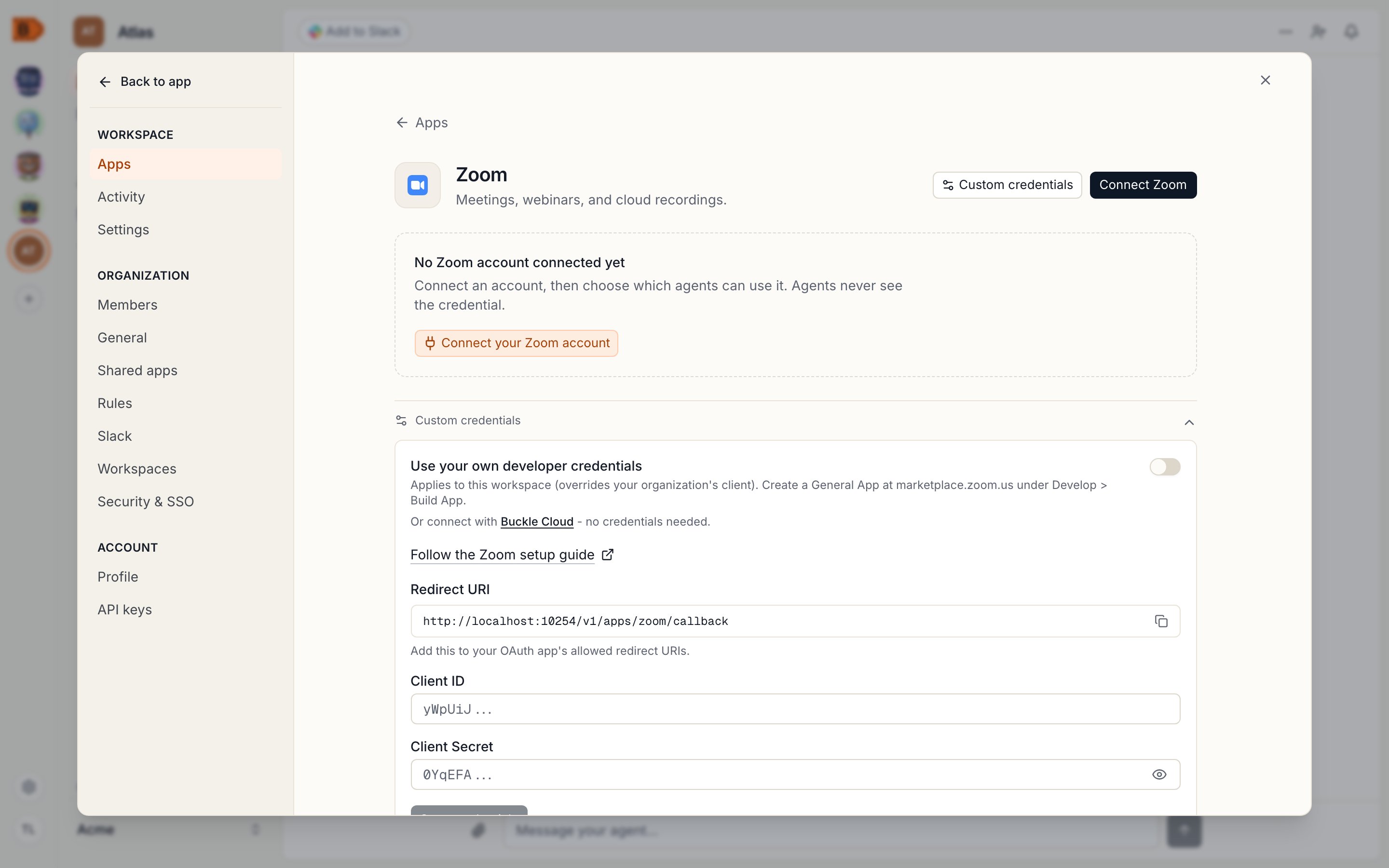
The Zoom app page under Settings > Apps
Authorize
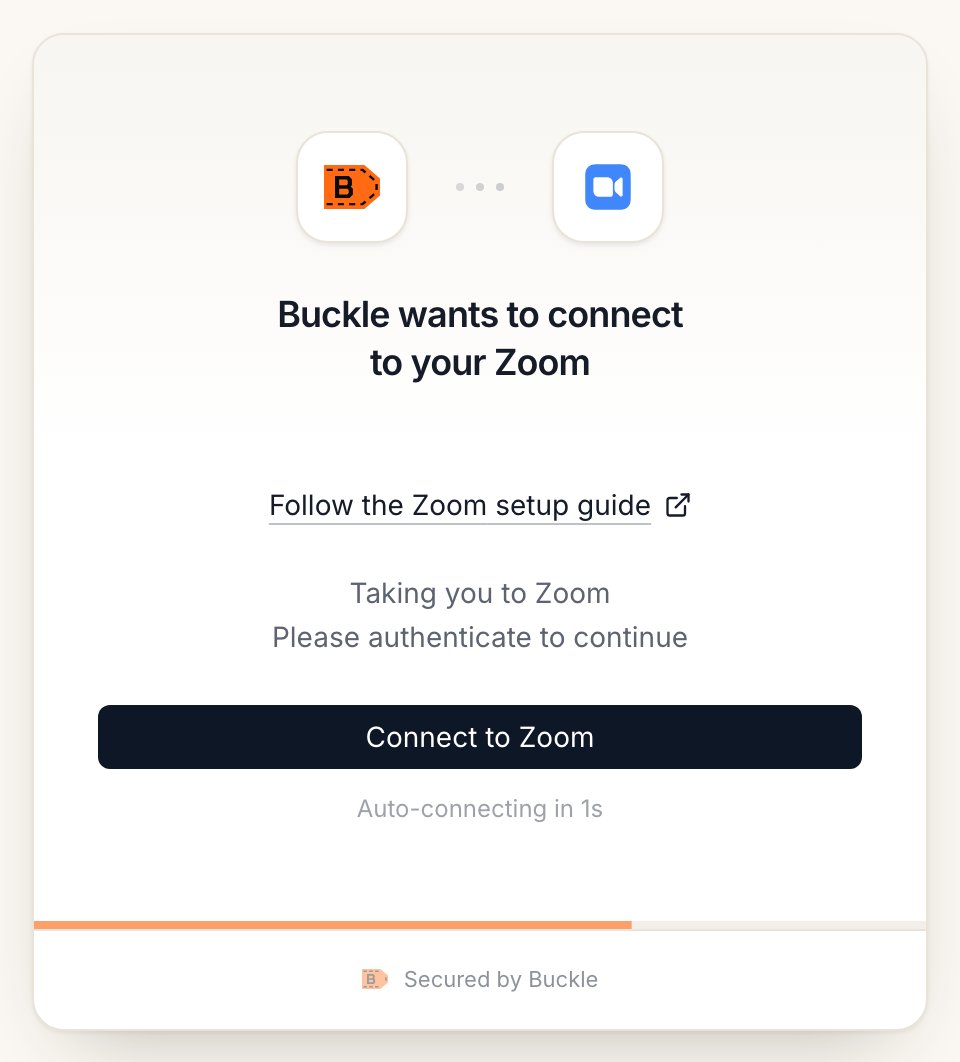
The Zoom connect window on Buckle Cloud.
Verify
Self-hosted: use your own Zoom app
ZOOM_CLIENT_ID and ZOOM_CLIENT_SECRET set, or if you want your own company name on Zoom’s consent screen.1. Create the Zoom app
1. Create the Zoom app
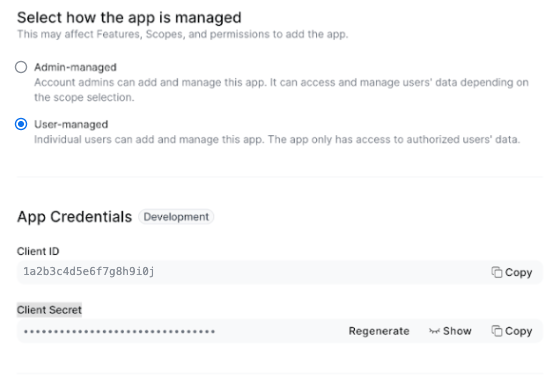
Choose User-managed. Your Client ID and Client Secret are under App Credentials.
2. Add the redirect URL
2. Add the redirect URL
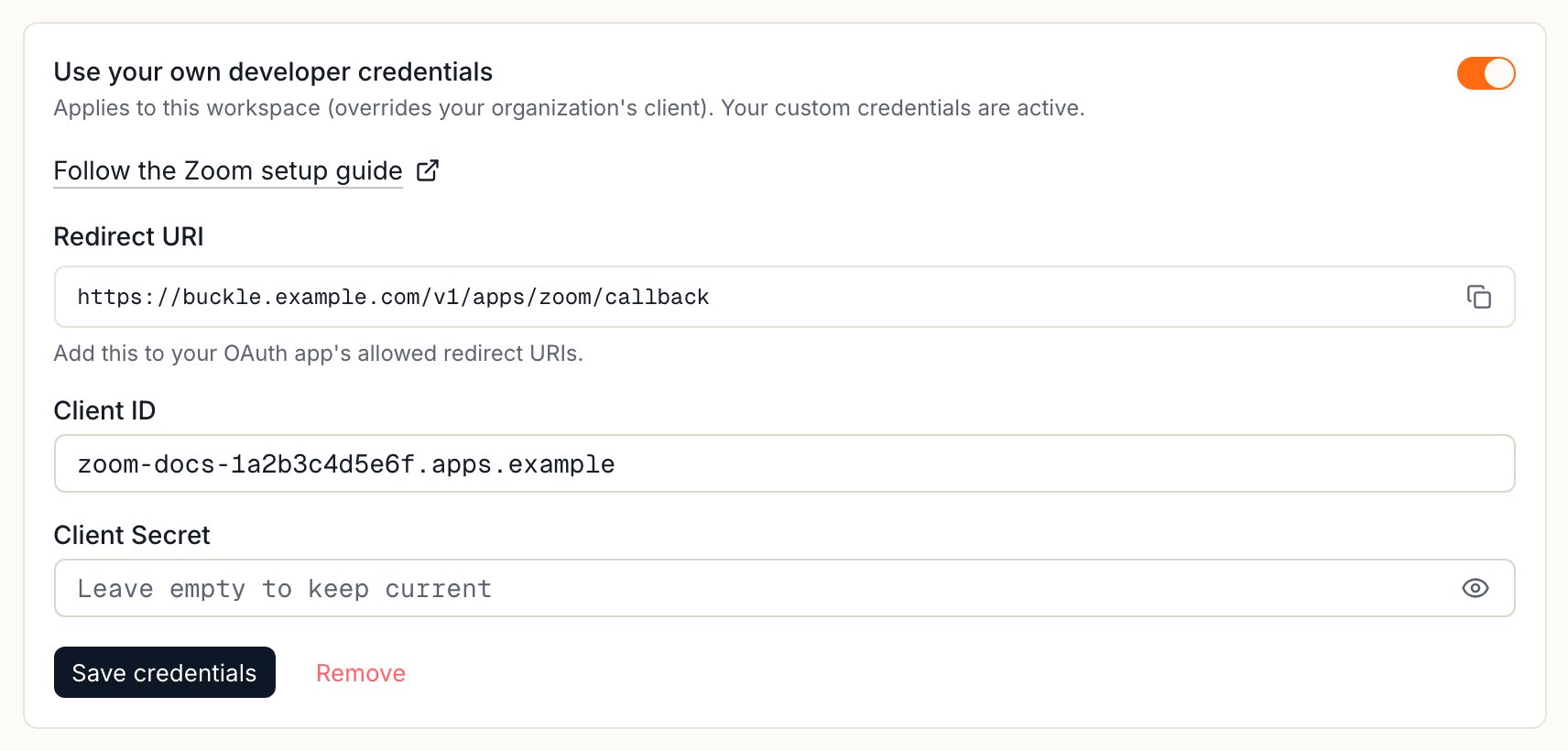
Copy the Redirect URI from Custom credentials in Buckle.
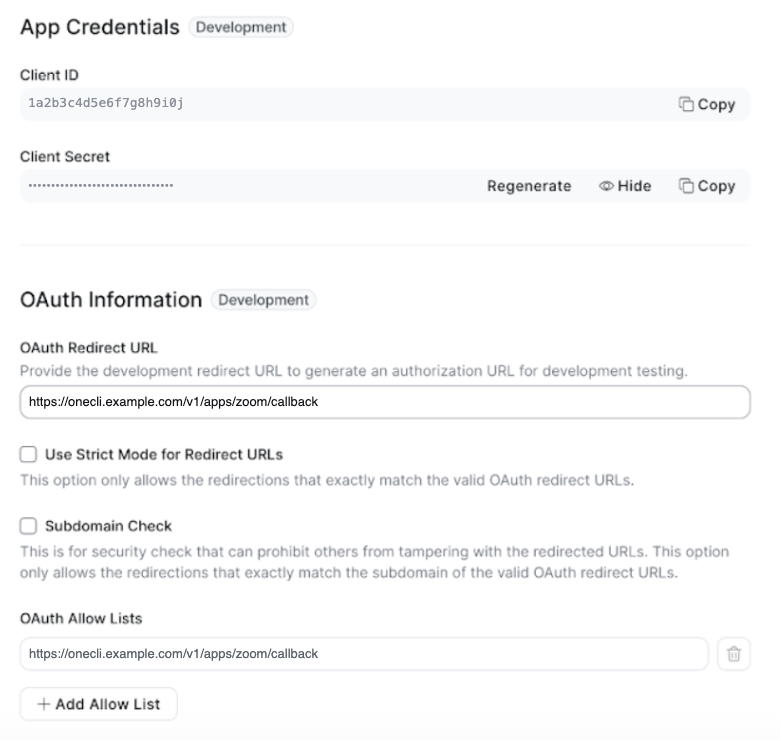
The Buckle Redirect URI in both OAuth Redirect URL and OAuth Allow Lists.
3. Add the scopes
3. Add the scopes
user:read:user, meeting:read:list_meetings, meeting:read:meeting, meeting:write:meeting, meeting:update:meeting, meeting:delete:meeting, cloud_recording:read:list_user_recordings, cloud_recording:read:list_recording_files4. Connect with your app
4. Connect with your app
Prerequisites and troubleshooting
Prerequisites and troubleshooting
- A Zoom account (Free, Pro, or Business)
- A Buckle account at app.buckle.dev
- Authorization fails: Ensure pop-ups are not blocked by your browser during the OAuth redirect.
- Missing scopes: If your agent can’t perform certain actions, disconnect and reconnect Zoom to request the optional write scopes.
- Token expired: Buckle automatically refreshes expired tokens. If you encounter persistent auth errors, disconnect and reconnect.
Usage
What agents can do
Meetings (read)- List scheduled and past meetings for your account
- Get details for a specific meeting (topic, start time, duration, join URL, participants)
- Schedule new meetings with topic, time, duration, and settings
- Update existing meetings (reschedule, change topic, modify settings)
- Delete meetings
- List all cloud recordings for your account
- Access recording files for a specific meeting (video, audio, transcript)
- View your Zoom profile (name, email, account type)
Example use cases
- Meeting prep agent: Pulls your upcoming meetings and prepares agendas or briefing docs
- Recording summarizer: Accesses cloud recordings and generates meeting summaries
- Scheduling assistant: Creates Zoom meetings based on calendar availability
- Meeting cleanup: Identifies and removes outdated or cancelled meetings
Activity log
All Zoom API requests made by agents are logged on the agent’s Activity page, under Traffic. You can see the method, endpoint, status, and latency for every request.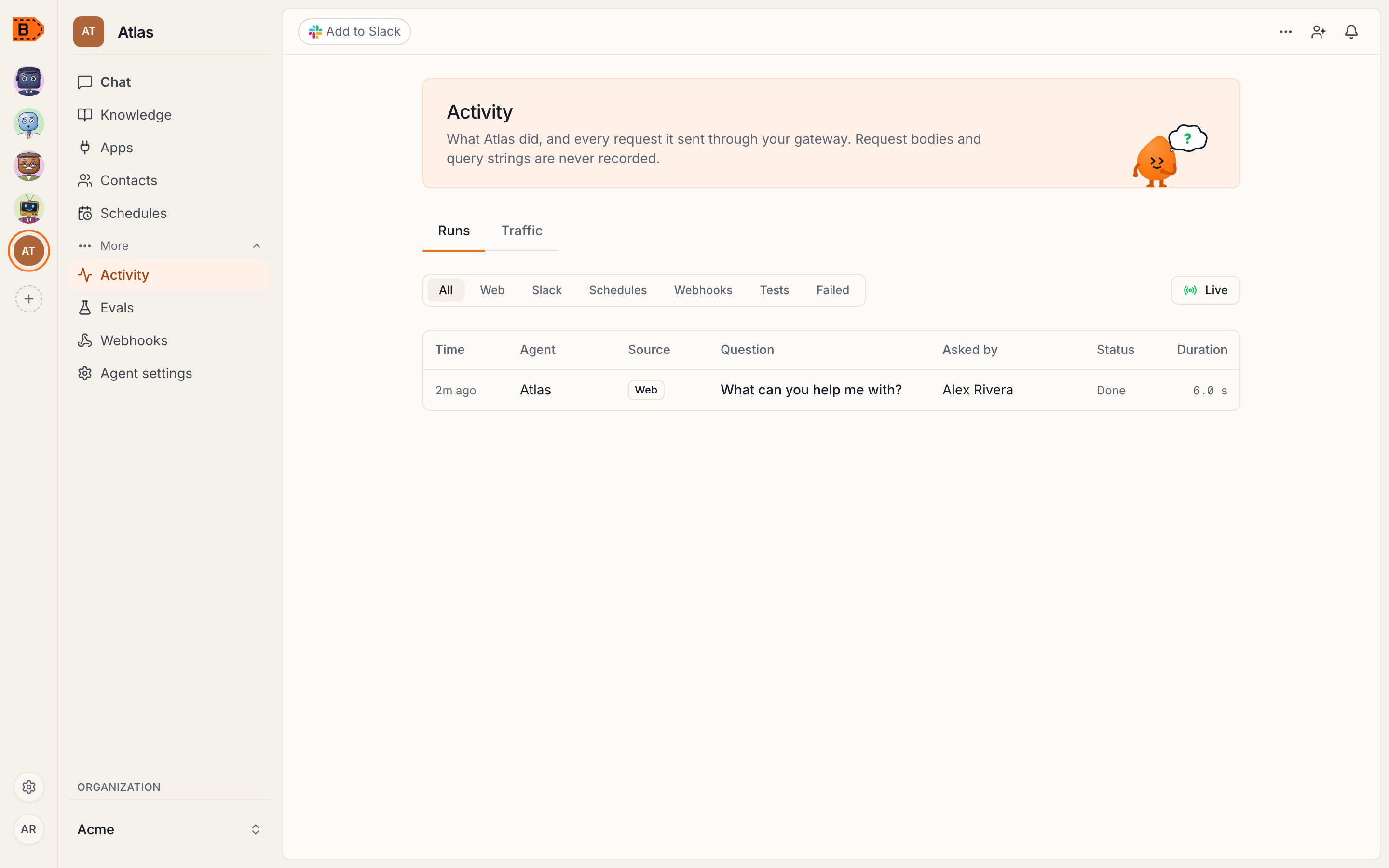
The Traffic tab of an agent's Activity page, showing Zoom API requests
Controlling access
Access is per agent: grant the connection to each agent that needs it, choosing per tool what runs freely, what needs human approval, and what stays blocked — a read-only agent is a single grant. Organization rules add guardrails on top, like rate limits and blanket blocks. Everything is checked before credential injection, so a blocked request never reaches the Zoom API.Removing the App
Removing the app
Removing the app
Disconnect from Buckle
Revoke from Zoom (optional)
- Buckle immediately deletes your stored OAuth tokens (access and refresh tokens)
- Any agents using the Zoom connection will receive authorization errors
- No Zoom data is retained by Buckle after disconnection
- Your Zoom meetings, recordings, and account are not affected
FAQ
What Zoom data does Buckle store?
What Zoom data does Buckle store?
Do I need a paid Zoom account?
Do I need a paid Zoom account?
Can I limit what agents are allowed to do?
Can I limit what agents are allowed to do?
What happens if my Zoom token expires?
What happens if my Zoom token expires?
Does the agent see my Zoom token?
Does the agent see my Zoom token?
Will disconnecting Buckle affect my Zoom account?
Will disconnecting Buckle affect my Zoom account?
Contact Support
If you run into issues with the Zoom integration:- Email: support@buckle.dev
- Discord: discord.gg/PSztzsQB3g
- Response time: We aim to respond within 24 hours on business days