Set Up One Google OAuth Client for All Google Apps
Create one Google OAuth client for Gmail, Drive, Calendar, Sheets, and every Google app in Buckle. Enable the APIs, set the consent screen, and connect.
One Google OAuth client covers every Google app in Buckle: Gmail, Calendar, Drive, Docs, Sheets, Slides, Forms, Meet, Tasks, Contacts, Chat, Photos, Admin, Analytics, Search Console, Classroom, and YouTube. Set it up once.
On Buckle Cloud, Google apps work out of the box. Follow this guide only if you want your own Google client, for example to show your company name on the consent screen or to keep tokens in your own Google Cloud project. Self-hosted instances need this guide unless GOOGLE_CLIENT_ID and GOOGLE_CLIENT_SECRET are set on the server.
What you will set up
A Google Cloud project with the Google APIs enabled
An OAuth consent screen and OAuth client
The Buckle Redirect URI registered on that client
Client credentials saved once in Buckle for every Google app
Before you start
A Google account that can create projects in Google Cloud console. To keep sign-in limited to your company, use an account in your Google Workspace.
A Buckle organization admin account on Cloud and Enterprise, where roles are enforced. Members there can’t change credentials. The Community edition runs a flat team, so any member can.
Red numbers in the screenshots match the actions below each image.
Set up your Google client
1
Start in Buckle
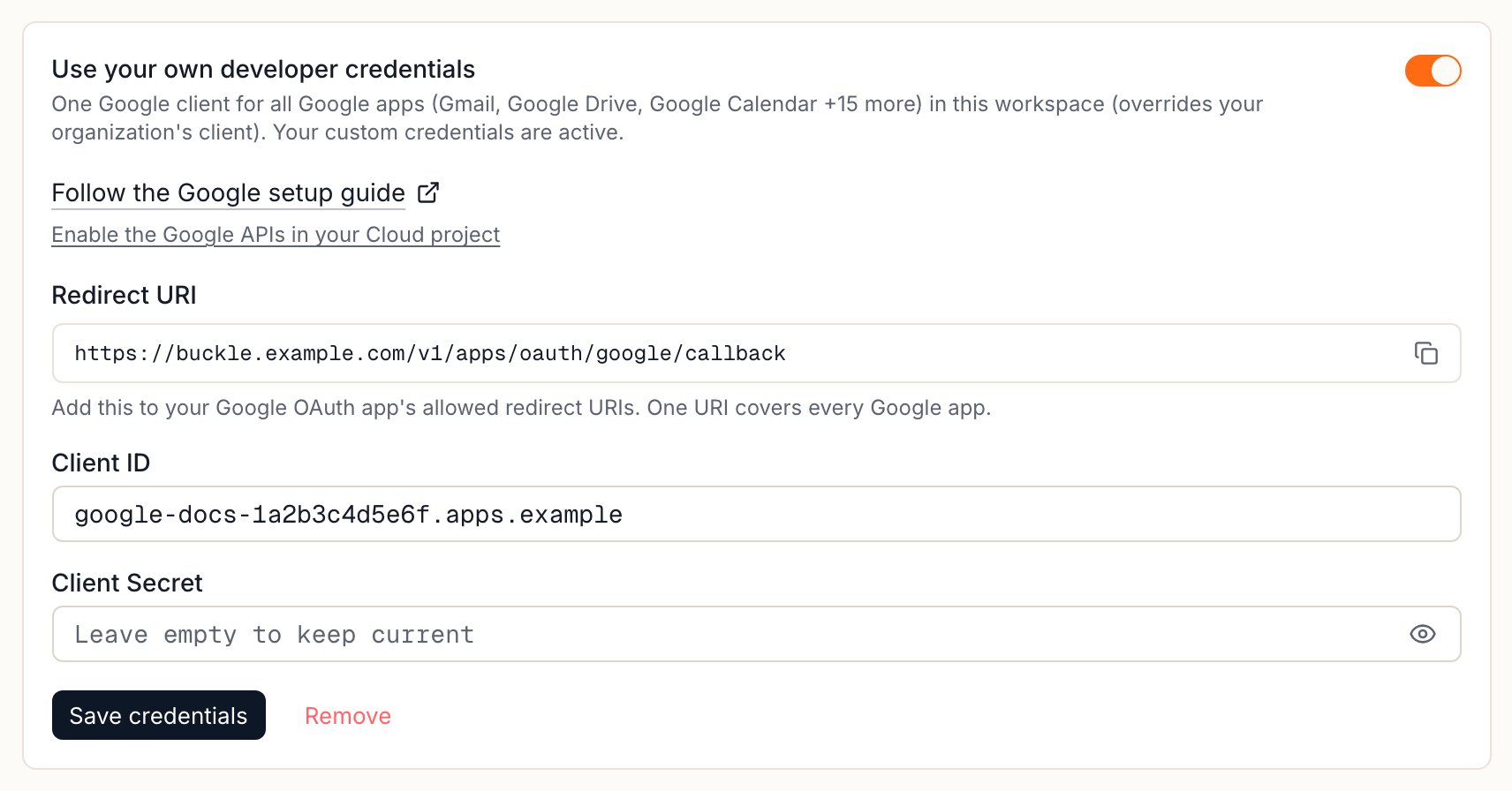
Open the credentials form for any Google app, for example Gmail:
For the whole organization:Settings > Shared apps > Gmail > Custom credentials.
For one workspace only:Settings > Apps > Gmail > Custom credentials in that workspace. This overrides the organization’s client in that workspace.
The Google credentials form in Buckle.
1. Click Enable the Google APIs in your Cloud project. It opens the next step.
2. Copy the Redirect URI. You’ll paste it into Google in step 4.
3. Leave this page open. You’ll paste the Client ID and Client Secret here at the end.
4.Save credentials comes last.
2
Enable the Google APIs
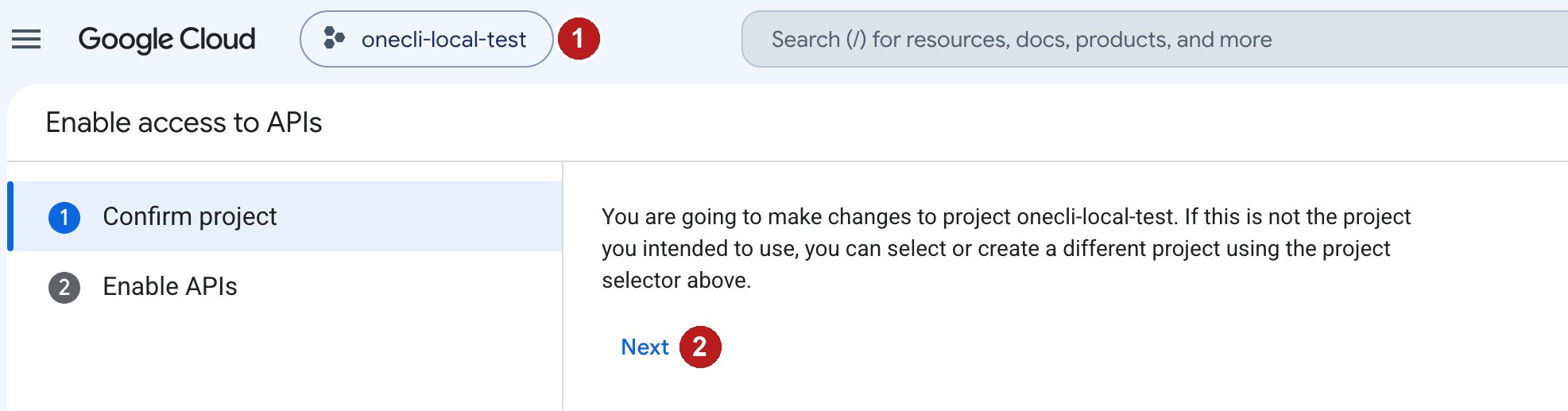
The link from Buckle enables all the Google APIs at once. To open it directly: enable the Google APIs.
Confirm the project, then enable the APIs.
1. Check the project. Pick or create the project for Buckle here.
2. Click Next, then Enable.
Don’t skip this step. If an API isn’t enabled, the app connects but every agent request fails with SERVICE_DISABLED.
3
Choose who can sign in
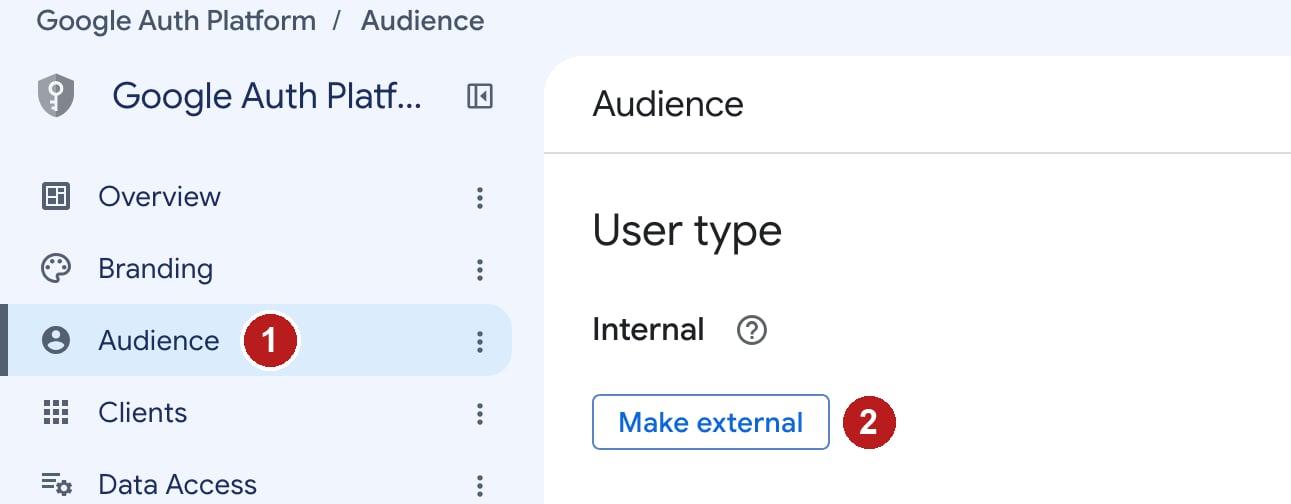
Go to Google Auth Platform → Audience. If Google asks you to set up Google Auth Platform first, click Get started, enter an app name such as Buckle and your support email, then come back here.
Pick Internal or External.
1. Open Audience.
2. Choose the user type:
User type
Who can connect
Choose it when
Internal (recommended)
Only accounts in the Google Workspace that owns this project
Everyone connecting uses your company Google accounts
External
Accounts you add as Test users while in Testing
People sign in from another Workspace or personal Gmail
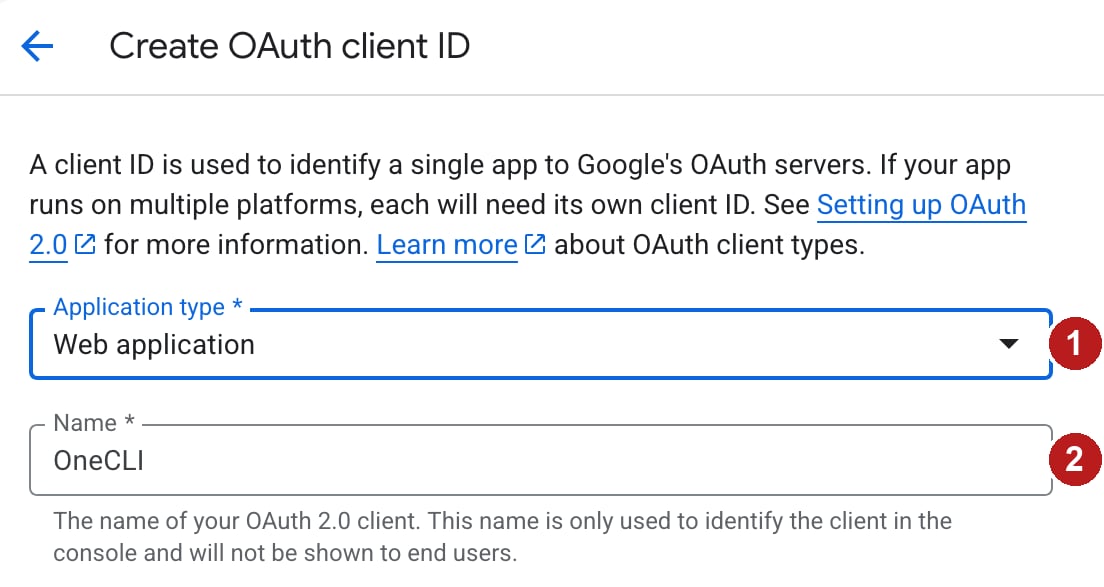
For External, click Make external, keep Testing, and add every person who will connect under Test users (up to 100).
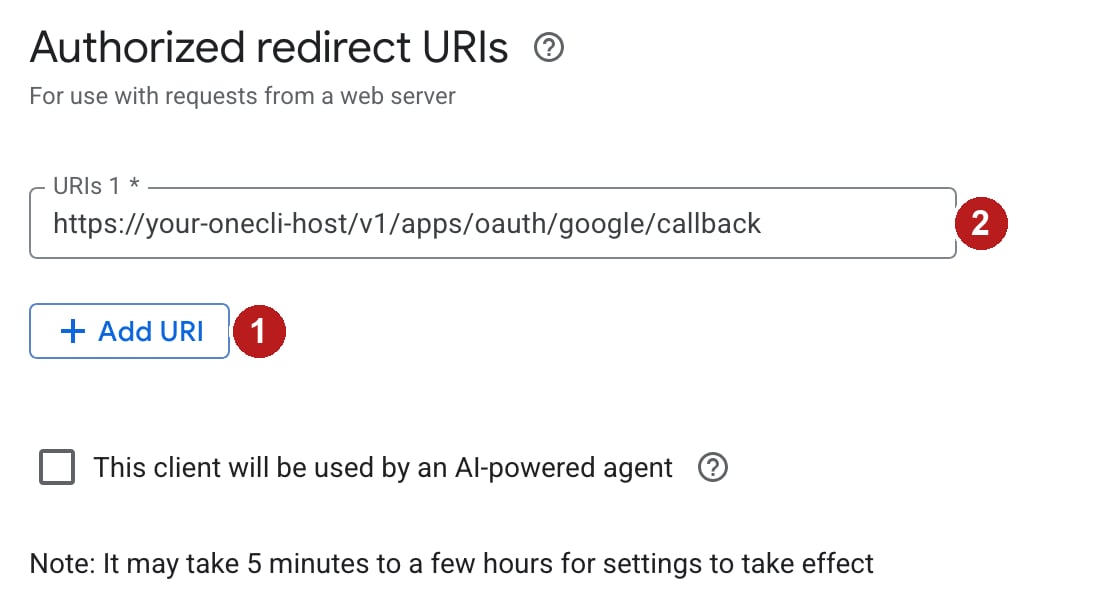
2. Paste the Redirect URI you copied from Buckle. It ends in /v1/apps/oauth/google/callback. One URI covers every Google app. Google only accepts https URIs, except for localhost.
Leave Authorized JavaScript origins empty. Click Create, then copy the Client ID and Client secret from the dialog.
5
Save in Buckle and connect
Back in Buckle, paste the Client ID and Client Secret, then click Save credentials.
Open any Google app, for example Google Drive, and click Connect. You don’t need to enter credentials again for other Google apps.
Sign in with Google and click Allow. With External in Testing, Google first shows Google hasn’t verified this app. Click Continue.
Ask your agent for something simple, such as “List my 5 most recent Drive files.”
Setup complete. Every Google app now uses your client, in every workspace you saved it for.
Where credentials apply
Saved in
Applies to
Shared apps (organization)
Every Google app in every workspace
A workspace’s Apps
Every Google app in that workspace only. Overrides the organization’s client.
Removing a workspace’s credentials returns it to the organization’s client. Saving or removing credentials disconnects the Google accounts that used the previous client, so people need to reconnect. Your first organization save also disconnects accounts connected through Buckle’s built-in Google client.
Troubleshooting
Error 403: org_internal
The app is Internal and the account signing in isn’t in the Google Workspace that owns the project. Either sign in with an account from that Workspace, or switch the app to External and add the account as a test user (step 3).
Error 400: redirect_uri_mismatch
The Redirect URI in Google doesn’t exactly match Buckle’s. Copy it again from the Buckle form and paste it into the client’s Authorized redirect URIs. Check https, the host, and that it ends in /v1/apps/oauth/google/callback. Changes can take a few minutes.
SERVICE_DISABLED or API has not been used in project
The Google API for that app isn’t enabled in this project. Repeat step 2 in the same project as the client, wait a minute, and retry. You don’t need to reconnect.
Error 403: access_denied
The app is External in Testing and this account isn’t a test user. Add it under Audience → Test users.
Error 400: admin_policy_enforced or Access blocked
Your Google Workspace admin restricts third-party apps. In the Google Admin console, go to Security → Access and data control → API controls → Manage third-party app access, and mark the Buckle client as Trusted using its Client ID.
Error 401: invalid_client
The Client ID or secret is wrong, or the client was deleted. Copy both again from Clients and save them in Buckle.
Connections stop working after 7 days
Google expires refresh tokens after 7 days for External apps in Testing. Use Internal, or publish the app under Audience → Publish app. Publishing an app that uses Gmail or Drive scopes may require Google verification.
FAQ
Do I need this guide on Buckle Cloud?
No. Google apps work out of the box on Cloud. Use this guide to show your company name on the consent screen or keep tokens in your own Google Cloud project.
Do I need a separate client for each Google app?
No. One client covers every Google app in Buckle. Credentials saved for one Google app apply to all of them.
Do agents see the client secret or OAuth tokens?
No. They stay in Buckle, and the gateway injects tokens at the proxy. See How it works.
{"docsConfig":{"theme":"mint","$schema":"https://mintlify.com/docs.json","name":"Buckle","colors":{"primary":"#ff6a13","light":"#ff8236","dark":"#e55e0f"},"logo":{"light":"https://mintcdn.com/onecli-17d3f772/5_AFCR2UNaqNo0AT/logo/logo-full-light.svg?fit=max\u0026auto=format\u0026n=5_AFCR2UNaqNo0AT\u0026q=85\u0026s=30ceea1dd3505e0e9dea50b544521ced","dark":"https://mintcdn.com/onecli-17d3f772/5_AFCR2UNaqNo0AT/logo/logo-full-dark.svg?fit=max\u0026auto=format\u0026n=5_AFCR2UNaqNo0AT\u0026q=85\u0026s=120ef96cf376422549781454d97dd810","href":"https://buckle.dev"},"favicon":"https://mintcdn.com/onecli-17d3f772/hJP3XqgFsBDnXHKy/favicon.svg?fit=max\u0026auto=format\u0026n=hJP3XqgFsBDnXHKy\u0026q=85\u0026s=ddda982106e5fd52c3815a54c183f4b1","appearance":{"default":"light"},"background":{"color":{"light":"#FAFAF9","dark":"#1A1918"}},"navbar":{"links":[{"href":"https://github.com/trybuckle/buckle","label":"GitHub"},{"href":"https://buckle.dev","label":"Install"}]},"footer":{"socials":{"github":"https://github.com/trybuckle"}},"fonts":{"heading":{"family":"Chakra Petch","weight":700,"source":"fonts/ChakraPetch-700.woff2","format":"woff2"}},"contextual":{"options":["copy","view","chatgpt","claude","perplexity","mcp","cursor","vscode"],"display":"header"},"styling":{"latex":false},"navigation":{"global":{"anchors":[{"anchor":"GitHub","icon":"https://mintlify.s3.us-west-1.amazonaws.com/onecli-17d3f772/images/github.svg","href":"https://github.com/buckle"}]},"pages":[]}},"deployment":{"deploymentMetadataValue":{"subdomain":"onecli-17d3f772","hasAudioNarration":false,"actualSubdomain":"onecli-17d3f772","customDomains":[],"gitSource":{"type":"github","owner":"trybuckle","repo":"buckle-docs","deployBranch":"main","contentDirectory":"","isPrivate":true,"mountPath":"","label":"","_id":"6af9ac749033d7e87e8c505a"},"entitlements":{"AI_CHAT":{"status":"DISABLED"}},"buildId":"6af9b4b9e79e0e5d703531fb","clientVersion":"0.0.4143","searchFilterCounts":[{"language":"default","tag":"API Reference","count":240},{"language":"default","tag":"Workspace","count":105},{"language":"default","tag":"Integrations","count":88},{"language":"default","tag":"All app connections","count":64},{"language":"default","tag":"Enterprise","count":57},{"language":"default","tag":"Organization","count":52},{"language":"default","tag":"Apps","count":29},{"language":"default","tag":"Channels","count":28},{"language":"default","tag":"Platform","count":21},{"language":"default","tag":"Guides","count":17}]},"assistantConfig":{"enableAskAiButton":false,"enableStarterQuestions":false,"enableContextualStarterQuestions":false,"enableAskAiSearchBar":true},"basePath":"/docs","hasChatPermissions":false,"hasWebMcpPermissions":false,"toggles":[{"name":"kill-isr","enabled":true,"variant":{"name":"disabled","enabled":false,"feature_enabled":true},"impressionData":false},{"name":"custom-rbac-roles","enabled":true,"variant":{"name":"disabled","enabled":false,"feature_enabled":true},"impressionData":false},{"name":"agent-mintlify-slack","enabled":true,"variant":{"name":"disabled","enabled":false,"feature_enabled":true},"impressionData":false},{"name":"agent-integrations-settings","enabled":true,"variant":{"name":"disabled","enabled":false,"feature_enabled":true},"impressionData":false},{"name":"rbac-expansion","enabled":true,"variant":{"name":"disabled","enabled":false,"feature_enabled":true},"impressionData":false},{"name":"automations-pr-grouping","enabled":true,"variant":{"name":"disabled","enabled":false,"feature_enabled":true},"impressionData":false},{"name":"custom-prefix","enabled":true,"variant":{"name":"disabled","enabled":false,"feature_enabled":true},"impressionData":false},{"name":"analytics-v7","enabled":true,"variant":{"name":"disabled","enabled":false,"feature_enabled":true},"impressionData":false},{"name":"user-flows-analytics","enabled":true,"variant":{"name":"disabled","enabled":false,"feature_enabled":true},"impressionData":false},{"name":"no-publish-flow","enabled":true,"variant":{"name":"disabled","enabled":false,"feature_enabled":true},"impressionData":false},{"name":"workos-onboarding","enabled":true,"variant":{"name":"disabled","enabled":false,"feature_enabled":true},"impressionData":false},{"name":"snapshot-serving-live","enabled":true,"variant":{"name":"disabled","enabled":false,"feature_enabled":true},"impressionData":false},{"name":"stripTemperatureMiddleware","enabled":true,"variant":{"name":"disabled","enabled":false,"feature_enabled":true},"impressionData":false},{"name":"support-platform-pylon-zendesk","enabled":true,"variant":{"name":"disabled","enabled":false,"feature_enabled":true},"impressionData":false},{"name":"snapshot-serving","enabled":true,"variant":{"name":"disabled","enabled":false,"feature_enabled":true},"impressionData":false},{"name":"instant-rollback","enabled":true,"variant":{"name":"disabled","enabled":false,"feature_enabled":true},"impressionData":false},{"name":"granular-notifications-server","enabled":true,"variant":{"name":"disabled","enabled":false,"feature_enabled":true},"impressionData":false},{"name":"granular-notifications","enabled":true,"variant":{"name":"disabled","enabled":false,"feature_enabled":true},"impressionData":false},{"name":"automations-fable","enabled":true,"variant":{"name":"disabled","enabled":false,"feature_enabled":true},"impressionData":false},{"name":"fixed-ai-action-pricing","enabled":true,"variant":{"name":"disabled","enabled":false,"feature_enabled":true},"impressionData":false},{"name":"automation-resolve-merge-conflict","enabled":true,"variant":{"name":"disabled","enabled":false,"feature_enabled":true},"impressionData":false},{"name":"scoped-publishing","enabled":true,"variant":{"name":"disabled","enabled":false,"feature_enabled":true},"impressionData":false},{"name":"mintql","enabled":true,"variant":{"name":"disabled","enabled":false,"feature_enabled":true},"impressionData":false},{"name":"page-level-analytics","enabled":true,"variant":{"name":"disabled","enabled":false,"feature_enabled":true},"impressionData":false},{"name":"editor-version-history-v2","enabled":true,"variant":{"name":"disabled","enabled":false,"feature_enabled":true},"impressionData":false},{"name":"billing-page-v2","enabled":true,"variant":{"name":"disabled","enabled":false,"feature_enabled":true},"impressionData":false},{"name":"full-page-search","enabled":true,"variant":{"name":"disabled","enabled":false,"feature_enabled":true},"impressionData":false},{"name":"workspace-projects","enabled":true,"variant":{"name":"disabled","enabled":false,"feature_enabled":true},"impressionData":false},{"name":"assistant-v5","enabled":true,"variant":{"name":"disabled","enabled":false,"feature_enabled":true},"impressionData":false},{"name":"fork-pr-previews","enabled":true,"variant":{"name":"disabled","enabled":false,"feature_enabled":true},"impressionData":false},{"name":"revalidation-jwt","enabled":true,"variant":{"name":"disabled","enabled":false,"feature_enabled":true},"impressionData":false},{"name":"workos-sso-scim","enabled":true,"variant":{"name":"disabled","enabled":false,"feature_enabled":true},"impressionData":false},{"name":"hobby-abuse-scan","enabled":true,"variant":{"name":"disabled","enabled":false,"feature_enabled":true},"impressionData":false},{"name":"dashboard-inbox","enabled":true,"variant":{"name":"disabled","enabled":false,"feature_enabled":true},"impressionData":false},{"name":"workos-signup","enabled":true,"variant":{"name":"disabled","enabled":false,"feature_enabled":true},"impressionData":false},{"name":"turbopuffer-dual-write","enabled":true,"variant":{"name":"disabled","enabled":false,"feature_enabled":true},"impressionData":false},{"name":"workos-enabled","enabled":true,"variant":{"name":"disabled","enabled":false,"feature_enabled":true},"impressionData":false},{"name":"approve-review-flow","enabled":true,"variant":{"name":"disabled","enabled":false,"feature_enabled":true},"impressionData":false},{"name":"editor-metadata","enabled":true,"variant":{"name":"disabled","enabled":false,"feature_enabled":true},"impressionData":false},{"name":"sso-setup-deadline-banner","enabled":true,"variant":{"name":"disabled","enabled":false,"feature_enabled":true},"impressionData":false},{"name":"turbopuffer-serve","enabled":true,"variant":{"name":"disabled","enabled":false,"feature_enabled":true},"impressionData":false},{"name":"live-agents","enabled":true,"variant":{"name":"disabled","enabled":false,"feature_enabled":true},"impressionData":false},{"name":"llms-txt-v2","enabled":true,"variant":{"name":"disabled","enabled":false,"feature_enabled":true},"impressionData":false}],"googleFontsInlined":false},"customCss":[{"filePath":"style.css","content":"a.nav-anchor div.mr-4.rounded-md{--tw-ring-color: transparent !important;--tw-ring-shadow: 0 0 0 0 transparent !important;--tw-ring-offset-shadow: 0 0 0 0 transparent !important;box-shadow:none!important;background:transparent!important;filter:none!important;transition:opacity 0.15s ease!important}a.nav-anchor:hover div.mr-4.rounded-md{--tw-ring-color: transparent !important;--tw-ring-shadow: 0 0 0 0 transparent !important;--tw-ring-offset-shadow: 0 0 0 0 transparent !important;box-shadow:none!important;background:transparent!important;filter:none!important;opacity:0.7!important}a.nav-anchor div.mr-4.rounded-md img{opacity:1!important;filter:none!important;background:transparent!important}a.nav-anchor:hover div.mr-4.rounded-md img{opacity:1!important;filter:none!important;background:transparent!important}.dark a.nav-anchor div.mr-4.rounded-md img,[data-theme=\"dark\"] a.nav-anchor div.mr-4.rounded-md img{filter:invert(1)!important}"}],"page":{"pagePath":"integrations/google","slug":"/integrations/google","pageMetadata":{"title":"Set Up One Google OAuth Client for All Google Apps","sidebarTitle":"Google (setup)","description":"Create one Google OAuth client for Gmail, Drive, Calendar, Sheets, and every Google app in Buckle. Enable the APIs, set the consent screen, and connect.","canonical":"https://buckle.dev/docs/integrations/google","href":"/integrations/google"},"description":{"compiledSource":"\"use strict\";\nconst {jsx: _jsx} = arguments[0];\nconst {useMDXComponents: _provideComponents} = arguments[0];\nfunction _createMdxContent(props) {\n const _components = {\n p: \"p\",\n ..._provideComponents(),\n ...props.components\n };\n return _jsx(_components.p, {\n children: \"Create one Google OAuth client for Gmail, Drive, Calendar, Sheets, and every Google app in Buckle. Enable the APIs, set the consent screen, and connect.\"\n });\n}\nfunction MDXContent(props = {}) {\n const {wrapper: MDXLayout} = {\n ..._provideComponents(),\n ...props.components\n };\n return MDXLayout ? _jsx(MDXLayout, {\n ...props,\n children: _jsx(_createMdxContent, {\n ...props\n })\n }) : _createMdxContent(props);\n}\nreturn {\n default: MDXContent\n};\n","frontmatter":{},"scope":{}},"pageType":"default","mdx":{"mdxSource":{"compiledSource":"\"use strict\";const{Fragment:_Fragment,jsx:_jsx,jsxs:_jsxs}=arguments[0];const{useMDXComponents:_provideComponents}=arguments[0];function _createMdxContent(props){const _components={a:`a`,code:`code`,li:`li`,ol:`ol`,p:`p`,strong:`strong`,tbody:`tbody`,td:`td`,th:`th`,thead:`thead`,tr:`tr`,ul:`ul`,..._provideComponents(),...props.components},{Accordion,AccordionGroup,Check,Frame,Heading,Note,OptimizedImage,Step,Steps,Table,Warning}=_components;if(!Accordion)_missingMdxReference(`Accordion`,true);if(!AccordionGroup)_missingMdxReference(`AccordionGroup`,true);if(!Check)_missingMdxReference(`Check`,true);if(!Frame)_missingMdxReference(`Frame`,true);if(!Heading)_missingMdxReference(`Heading`,true);if(!Note)_missingMdxReference(`Note`,true);if(!OptimizedImage)_missingMdxReference(`OptimizedImage`,true);if(!Step)_missingMdxReference(`Step`,true);if(!Steps)_missingMdxReference(`Steps`,true);if(!Table)_missingMdxReference(`Table`,true);if(!Warning)_missingMdxReference(`Warning`,true);return _jsxs(_Fragment,{children:[_jsxs(_components.p,{children:[`One Google OAuth client covers `,_jsx(_components.strong,{children:`every Google app`}),` in Buckle: Gmail, Calendar, Drive, Docs, Sheets, Slides, Forms, Meet, Tasks, Contacts, Chat, Photos, Admin, Analytics, Search Console, Classroom, and YouTube. Set it up once.`]}),`\n`,_jsx(Note,{children:_jsxs(_components.p,{children:[`On Buckle Cloud, Google apps work out of the box. Follow this guide only if you want your own Google client, for example to show your company name on the consent screen or to keep tokens in your own Google Cloud project. Self-hosted instances need this guide unless `,_jsx(_components.code,{children:`GOOGLE_CLIENT_ID`}),` and `,_jsx(_components.code,{children:`GOOGLE_CLIENT_SECRET`}),` are set on the server.`]})}),`\n`,_jsx(Heading,{level:`2`,id:`what-you-will-set-up`,children:`What you will set up`}),`\n`,_jsxs(_components.ul,{children:[`\n`,_jsx(_components.li,{children:`A Google Cloud project with the Google APIs enabled`}),`\n`,_jsx(_components.li,{children:`An OAuth consent screen and OAuth client`}),`\n`,_jsx(_components.li,{children:`The Buckle Redirect URI registered on that client`}),`\n`,_jsx(_components.li,{children:`Client credentials saved once in Buckle for every Google app`}),`\n`]}),`\n`,_jsx(Heading,{level:`2`,id:`before-you-start`,children:`Before you start`}),`\n`,_jsxs(_components.ul,{children:[`\n`,_jsxs(_components.li,{children:[`A Google account that can create projects in `,_jsx(_components.a,{href:`https://console.cloud.google.com/`,children:`Google Cloud console`}),`. To keep sign-in limited to your company, use an account in your Google Workspace.`]}),`\n`,_jsxs(_components.li,{children:[`A Buckle `,_jsx(_components.strong,{children:`organization admin`}),` account on Cloud and Enterprise, where roles are enforced. Members there can’t change credentials. The Community edition runs a `,_jsx(_components.a,{href:`/api-reference/editions#roles`,children:`flat team`}),`, so any member can.`]}),`\n`]}),`\n`,_jsx(Note,{children:_jsx(_components.p,{children:`Red numbers in the screenshots match the actions below each image.`})}),`\n`,_jsx(Heading,{level:`2`,id:`set-up-your-google-client`,children:`Set up your Google client`}),`\n`,_jsxs(Steps,{children:[_jsxs(Step,{title:`Start in Buckle`,children:[_jsxs(_components.p,{children:[`Open the credentials form for `,_jsx(_components.strong,{children:`any`}),` Google app, for example Gmail:`]}),_jsxs(_components.ul,{children:[`\n`,_jsxs(_components.li,{children:[_jsx(_components.strong,{children:`For the whole organization:`}),` `,_jsx(_components.strong,{children:`Settings`}),` > `,_jsx(_components.strong,{children:`Shared apps`}),` > `,_jsx(_components.strong,{children:`Gmail`}),` > `,_jsx(_components.strong,{children:`Custom credentials`}),`.`]}),`\n`,_jsxs(_components.li,{children:[_jsx(_components.strong,{children:`For one workspace only:`}),` `,_jsx(_components.strong,{children:`Settings`}),` > `,_jsx(_components.strong,{children:`Apps`}),` > `,_jsx(_components.strong,{children:`Gmail`}),` > `,_jsx(_components.strong,{children:`Custom credentials`}),` in that workspace. This overrides the organization’s client in that workspace.`]}),`\n`]}),_jsx(Frame,{caption:`The Google credentials form in Buckle.`,children:_jsx(OptimizedImage,{src:`https://mintcdn.com/onecli-17d3f772/hJP3XqgFsBDnXHKy/images/integrations/google/01-buckle-setup.png?fit=max\u0026auto=format\u0026n=hJP3XqgFsBDnXHKy\u0026q=85\u0026s=3093d1e222ff7700edc0f505d28dc595`,alt:`Buckle Google credentials form with the setup guide link, Enable the Google APIs link, Redirect URI, Client ID, Client Secret, and Save credentials.`,\"data-og-width\":`1712`,width:`1712`,\"data-og-height\":`896`,height:`896`,\"data-path\":`images/integrations/google/01-buckle-setup.png`,\"data-optimize\":`true`,\"data-opv\":`3`,srcset:`https://mintcdn.com/onecli-17d3f772/hJP3XqgFsBDnXHKy/images/integrations/google/01-buckle-setup.png?w=280\u0026fit=max\u0026auto=format\u0026n=hJP3XqgFsBDnXHKy\u0026q=85\u0026s=946059651f312a43cd0d27d6344863f2 280w, https://mintcdn.com/onecli-17d3f772/hJP3XqgFsBDnXHKy/images/integrations/google/01-buckle-setup.png?w=560\u0026fit=max\u0026auto=format\u0026n=hJP3XqgFsBDnXHKy\u0026q=85\u0026s=02878a5e51d9b738872c640ace1771fc 560w, https://mintcdn.com/onecli-17d3f772/hJP3XqgFsBDnXHKy/images/integrations/google/01-buckle-setup.png?w=840\u0026fit=max\u0026auto=format\u0026n=hJP3XqgFsBDnXHKy\u0026q=85\u0026s=61f8b2a555fbc8324a0952d37c04c93b 840w, https://mintcdn.com/onecli-17d3f772/hJP3XqgFsBDnXHKy/images/integrations/google/01-buckle-setup.png?w=1100\u0026fit=max\u0026auto=format\u0026n=hJP3XqgFsBDnXHKy\u0026q=85\u0026s=8d39f8d67d747498dd8ad21e5de5542c 1100w, https://mintcdn.com/onecli-17d3f772/hJP3XqgFsBDnXHKy/images/integrations/google/01-buckle-setup.png?w=1650\u0026fit=max\u0026auto=format\u0026n=hJP3XqgFsBDnXHKy\u0026q=85\u0026s=03cef64e380ed63b64a126dd5a1f1530 1650w, https://mintcdn.com/onecli-17d3f772/hJP3XqgFsBDnXHKy/images/integrations/google/01-buckle-setup.png?w=2500\u0026fit=max\u0026auto=format\u0026n=hJP3XqgFsBDnXHKy\u0026q=85\u0026s=43187d97644e8ce4c5d1d61cfaa47140 2500w`})}),_jsxs(_components.ul,{children:[`\n`,_jsxs(_components.li,{children:[_jsx(_components.strong,{children:`1.`}),` Click `,_jsx(_components.strong,{children:`Enable the Google APIs in your Cloud project`}),`. It opens the next step.`]}),`\n`,_jsxs(_components.li,{children:[_jsx(_components.strong,{children:`2.`}),` Copy the `,_jsx(_components.strong,{children:`Redirect URI`}),`. You’ll paste it into Google in step 4.`]}),`\n`,_jsxs(_components.li,{children:[_jsx(_components.strong,{children:`3.`}),` Leave this page open. You’ll paste the `,_jsx(_components.strong,{children:`Client ID`}),` and `,_jsx(_components.strong,{children:`Client Secret`}),` here at the end.`]}),`\n`,_jsxs(_components.li,{children:[_jsx(_components.strong,{children:`4.`}),` `,_jsx(_components.strong,{children:`Save credentials`}),` comes last.`]}),`\n`]})]}),_jsxs(Step,{title:`Enable the Google APIs`,children:[_jsxs(_components.p,{children:[`The link from Buckle enables all the Google APIs at once. To open it directly: `,_jsx(_components.a,{href:`https://console.cloud.google.com/flows/enableapi?apiid=gmail.googleapis.com,admin.googleapis.com,analyticsdata.googleapis.com,calendar-json.googleapis.com,chat.googleapis.com,classroom.googleapis.com,people.googleapis.com,docs.googleapis.com,drive.googleapis.com,forms.googleapis.com,meet.googleapis.com,photoslibrary.googleapis.com,searchconsole.googleapis.com,sheets.googleapis.com,slides.googleapis.com,tasks.googleapis.com,youtube.googleapis.com`,children:`enable the Google APIs`}),`.`]}),_jsx(Frame,{caption:`Confirm the project, then enable the APIs.`,children:_jsx(OptimizedImage,{src:`https://mintcdn.com/onecli-17d3f772/hJP3XqgFsBDnXHKy/images/integrations/google/02-enable-apis.png?fit=max\u0026auto=format\u0026n=hJP3XqgFsBDnXHKy\u0026q=85\u0026s=b6ae3e3c13f6f02c13b492084db005bc`,alt:`Google Cloud Enable access to APIs page with the project picker and the Next button.`,\"data-og-width\":`1973`,width:`1973`,\"data-og-height\":`517`,height:`517`,\"data-path\":`images/integrations/google/02-enable-apis.png`,\"data-optimize\":`true`,\"data-opv\":`3`,srcset:`https://mintcdn.com/onecli-17d3f772/hJP3XqgFsBDnXHKy/images/integrations/google/02-enable-apis.png?w=280\u0026fit=max\u0026auto=format\u0026n=hJP3XqgFsBDnXHKy\u0026q=85\u0026s=ea8f804a10b35974769afa202c9d3844 280w, https://mintcdn.com/onecli-17d3f772/hJP3XqgFsBDnXHKy/images/integrations/google/02-enable-apis.png?w=560\u0026fit=max\u0026auto=format\u0026n=hJP3XqgFsBDnXHKy\u0026q=85\u0026s=3d9f9a931d66412b2a882cbc628bbfe0 560w, https://mintcdn.com/onecli-17d3f772/hJP3XqgFsBDnXHKy/images/integrations/google/02-enable-apis.png?w=840\u0026fit=max\u0026auto=format\u0026n=hJP3XqgFsBDnXHKy\u0026q=85\u0026s=11014ae203dccb21fccb2304a0b51c31 840w, https://mintcdn.com/onecli-17d3f772/hJP3XqgFsBDnXHKy/images/integrations/google/02-enable-apis.png?w=1100\u0026fit=max\u0026auto=format\u0026n=hJP3XqgFsBDnXHKy\u0026q=85\u0026s=664d6bc326746d63a5c1b9d767f5621d 1100w, https://mintcdn.com/onecli-17d3f772/hJP3XqgFsBDnXHKy/images/integrations/google/02-enable-apis.png?w=1650\u0026fit=max\u0026auto=format\u0026n=hJP3XqgFsBDnXHKy\u0026q=85\u0026s=543d67c7055b273b629fa6c102dfb154 1650w, https://mintcdn.com/onecli-17d3f772/hJP3XqgFsBDnXHKy/images/integrations/google/02-enable-apis.png?w=2500\u0026fit=max\u0026auto=format\u0026n=hJP3XqgFsBDnXHKy\u0026q=85\u0026s=0705b3f9cc8b9747325f2115d94144a2 2500w`})}),_jsxs(_components.ul,{children:[`\n`,_jsxs(_components.li,{children:[_jsx(_components.strong,{children:`1.`}),` Check the project. Pick or create the project for Buckle here.`]}),`\n`,_jsxs(_components.li,{children:[_jsx(_components.strong,{children:`2.`}),` Click `,_jsx(_components.strong,{children:`Next`}),`, then `,_jsx(_components.strong,{children:`Enable`}),`.`]}),`\n`]}),_jsx(Warning,{children:_jsxs(_components.p,{children:[`Don’t skip this step. If an API isn’t enabled, the app connects but every agent request fails with `,_jsx(_components.code,{children:`SERVICE_DISABLED`}),`.`]})})]}),_jsxs(Step,{title:`Choose who can sign in`,children:[_jsxs(_components.p,{children:[`Go to `,_jsx(_components.a,{href:`https://console.cloud.google.com/auth/audience`,children:`Google Auth Platform → Audience`}),`. If Google asks you to set up Google Auth Platform first, click `,_jsx(_components.strong,{children:`Get started`}),`, enter an app name such as `,_jsx(_components.code,{children:`Buckle`}),` and your support email, then come back here.`]}),_jsx(Frame,{caption:`Pick Internal or External.`,children:_jsx(OptimizedImage,{src:`https://mintcdn.com/onecli-17d3f772/hJP3XqgFsBDnXHKy/images/integrations/google/03-audience.png?fit=max\u0026auto=format\u0026n=hJP3XqgFsBDnXHKy\u0026q=85\u0026s=76601e65904ba5df32d5418dc180b618`,alt:`Google Auth Platform Audience page showing User type Internal and the Make external button.`,\"data-og-width\":`1291`,width:`1291`,\"data-og-height\":`504`,height:`504`,\"data-path\":`images/integrations/google/03-audience.png`,\"data-optimize\":`true`,\"data-opv\":`3`,srcset:`https://mintcdn.com/onecli-17d3f772/hJP3XqgFsBDnXHKy/images/integrations/google/03-audience.png?w=280\u0026fit=max\u0026auto=format\u0026n=hJP3XqgFsBDnXHKy\u0026q=85\u0026s=8e94af63efd3aaaa9066ede3c341ba3c 280w, https://mintcdn.com/onecli-17d3f772/hJP3XqgFsBDnXHKy/images/integrations/google/03-audience.png?w=560\u0026fit=max\u0026auto=format\u0026n=hJP3XqgFsBDnXHKy\u0026q=85\u0026s=9f06b855b2896c128f9a7f9885ef2983 560w, https://mintcdn.com/onecli-17d3f772/hJP3XqgFsBDnXHKy/images/integrations/google/03-audience.png?w=840\u0026fit=max\u0026auto=format\u0026n=hJP3XqgFsBDnXHKy\u0026q=85\u0026s=f5cc3f8d3755f793f4ee9b54d95d0c16 840w, https://mintcdn.com/onecli-17d3f772/hJP3XqgFsBDnXHKy/images/integrations/google/03-audience.png?w=1100\u0026fit=max\u0026auto=format\u0026n=hJP3XqgFsBDnXHKy\u0026q=85\u0026s=59af8e26bbd46b660c5baf7561898834 1100w, https://mintcdn.com/onecli-17d3f772/hJP3XqgFsBDnXHKy/images/integrations/google/03-audience.png?w=1650\u0026fit=max\u0026auto=format\u0026n=hJP3XqgFsBDnXHKy\u0026q=85\u0026s=06447f5d1d7c8597f676332952e6a9f1 1650w, https://mintcdn.com/onecli-17d3f772/hJP3XqgFsBDnXHKy/images/integrations/google/03-audience.png?w=2500\u0026fit=max\u0026auto=format\u0026n=hJP3XqgFsBDnXHKy\u0026q=85\u0026s=ec4c90c651e5f91cfd4eb8eec6d57e16 2500w`})}),_jsxs(_components.ul,{children:[`\n`,_jsxs(_components.li,{children:[_jsx(_components.strong,{children:`1.`}),` Open `,_jsx(_components.strong,{children:`Audience`}),`.`]}),`\n`,_jsxs(_components.li,{children:[_jsx(_components.strong,{children:`2.`}),` Choose the user type:`]}),`\n`]}),_jsxs(Table,{children:[_jsx(_components.thead,{children:_jsxs(_components.tr,{children:[_jsx(_components.th,{children:`User type`}),_jsx(_components.th,{children:`Who can connect`}),_jsx(_components.th,{children:`Choose it when`})]})}),_jsxs(_components.tbody,{children:[_jsxs(_components.tr,{children:[_jsxs(_components.td,{children:[_jsx(_components.strong,{children:`Internal`}),` (recommended)`]}),_jsx(_components.td,{children:`Only accounts in the Google Workspace that owns this project`}),_jsx(_components.td,{children:`Everyone connecting uses your company Google accounts`})]}),_jsxs(_components.tr,{children:[_jsx(_components.td,{children:_jsx(_components.strong,{children:`External`})}),_jsxs(_components.td,{children:[`Accounts you add as `,_jsx(_components.strong,{children:`Test users`}),` while in Testing`]}),_jsx(_components.td,{children:`People sign in from another Workspace or personal Gmail`})]})]})]}),_jsxs(_components.p,{children:[`For `,_jsx(_components.strong,{children:`External`}),`, click `,_jsx(_components.strong,{children:`Make external`}),`, keep `,_jsx(_components.strong,{children:`Testing`}),`, and add every person who will connect under `,_jsx(_components.strong,{children:`Test users`}),` (up to 100).`]})]}),_jsxs(Step,{title:`Create the client`,children:[_jsxs(_components.p,{children:[`Go to `,_jsx(_components.a,{href:`https://console.cloud.google.com/auth/clients`,children:`Google Auth Platform → Clients`}),`.`]}),_jsx(Frame,{caption:`Start a new OAuth client.`,children:_jsx(OptimizedImage,{src:`https://mintcdn.com/onecli-17d3f772/hJP3XqgFsBDnXHKy/images/integrations/google/04-clients.png?fit=max\u0026auto=format\u0026n=hJP3XqgFsBDnXHKy\u0026q=85\u0026s=15eb22063e930ab3285d52c16236e352`,alt:`Google Auth Platform Clients page with the Create client button.`,\"data-og-width\":`1831`,width:`1831`,\"data-og-height\":`457`,height:`457`,\"data-path\":`images/integrations/google/04-clients.png`,\"data-optimize\":`true`,\"data-opv\":`3`,srcset:`https://mintcdn.com/onecli-17d3f772/hJP3XqgFsBDnXHKy/images/integrations/google/04-clients.png?w=280\u0026fit=max\u0026auto=format\u0026n=hJP3XqgFsBDnXHKy\u0026q=85\u0026s=d9f3ea54a553c73bdc23b01027b4ad3e 280w, https://mintcdn.com/onecli-17d3f772/hJP3XqgFsBDnXHKy/images/integrations/google/04-clients.png?w=560\u0026fit=max\u0026auto=format\u0026n=hJP3XqgFsBDnXHKy\u0026q=85\u0026s=4749bc827fae5c8e0691063264c11458 560w, https://mintcdn.com/onecli-17d3f772/hJP3XqgFsBDnXHKy/images/integrations/google/04-clients.png?w=840\u0026fit=max\u0026auto=format\u0026n=hJP3XqgFsBDnXHKy\u0026q=85\u0026s=76085e922ae1eb7f1023ae6b42a73f46 840w, https://mintcdn.com/onecli-17d3f772/hJP3XqgFsBDnXHKy/images/integrations/google/04-clients.png?w=1100\u0026fit=max\u0026auto=format\u0026n=hJP3XqgFsBDnXHKy\u0026q=85\u0026s=8faaa14d3eea0621561573e4c5202ffc 1100w, https://mintcdn.com/onecli-17d3f772/hJP3XqgFsBDnXHKy/images/integrations/google/04-clients.png?w=1650\u0026fit=max\u0026auto=format\u0026n=hJP3XqgFsBDnXHKy\u0026q=85\u0026s=33004f3a038387fc47bb76a0c30b04d2 1650w, https://mintcdn.com/onecli-17d3f772/hJP3XqgFsBDnXHKy/images/integrations/google/04-clients.png?w=2500\u0026fit=max\u0026auto=format\u0026n=hJP3XqgFsBDnXHKy\u0026q=85\u0026s=051a78057b73d0e26f4baeed4050a1d6 2500w`})}),_jsxs(_components.ul,{children:[`\n`,_jsxs(_components.li,{children:[_jsx(_components.strong,{children:`1.`}),` Open `,_jsx(_components.strong,{children:`Clients`}),`.`]}),`\n`,_jsxs(_components.li,{children:[_jsx(_components.strong,{children:`2.`}),` Click `,_jsx(_components.strong,{children:`Create client`}),`.`]}),`\n`]}),_jsx(Frame,{caption:`Web application, named Buckle.`,children:_jsx(OptimizedImage,{src:`https://mintcdn.com/onecli-17d3f772/hJP3XqgFsBDnXHKy/images/integrations/google/05-create-client.png?fit=max\u0026auto=format\u0026n=hJP3XqgFsBDnXHKy\u0026q=85\u0026s=5e1959e7c0d0ccb763ecab0b771c4133`,alt:`Create OAuth client ID form with Application type Web application and Name Buckle.`,\"data-og-width\":`1104`,width:`1104`,\"data-og-height\":`587`,height:`587`,\"data-path\":`images/integrations/google/05-create-client.png`,\"data-optimize\":`true`,\"data-opv\":`3`,srcset:`https://mintcdn.com/onecli-17d3f772/hJP3XqgFsBDnXHKy/images/integrations/google/05-create-client.png?w=280\u0026fit=max\u0026auto=format\u0026n=hJP3XqgFsBDnXHKy\u0026q=85\u0026s=97d2b58a36c8d06576de546ec29547dd 280w, https://mintcdn.com/onecli-17d3f772/hJP3XqgFsBDnXHKy/images/integrations/google/05-create-client.png?w=560\u0026fit=max\u0026auto=format\u0026n=hJP3XqgFsBDnXHKy\u0026q=85\u0026s=1d50b5a02a9a5f5381ae2d14bb2f8077 560w, https://mintcdn.com/onecli-17d3f772/hJP3XqgFsBDnXHKy/images/integrations/google/05-create-client.png?w=840\u0026fit=max\u0026auto=format\u0026n=hJP3XqgFsBDnXHKy\u0026q=85\u0026s=bee70ba8d49d2bddba31d1863ab61a64 840w, https://mintcdn.com/onecli-17d3f772/hJP3XqgFsBDnXHKy/images/integrations/google/05-create-client.png?w=1100\u0026fit=max\u0026auto=format\u0026n=hJP3XqgFsBDnXHKy\u0026q=85\u0026s=2168eaabc64bb99c4035536a05f3f3a7 1100w, https://mintcdn.com/onecli-17d3f772/hJP3XqgFsBDnXHKy/images/integrations/google/05-create-client.png?w=1650\u0026fit=max\u0026auto=format\u0026n=hJP3XqgFsBDnXHKy\u0026q=85\u0026s=c4f814a2ada425671756ea91c0c16a2d 1650w, https://mintcdn.com/onecli-17d3f772/hJP3XqgFsBDnXHKy/images/integrations/google/05-create-client.png?w=2500\u0026fit=max\u0026auto=format\u0026n=hJP3XqgFsBDnXHKy\u0026q=85\u0026s=b3a75fd93c151fc9485aa0d302d0e415 2500w`})}),_jsxs(_components.ul,{children:[`\n`,_jsxs(_components.li,{children:[_jsx(_components.strong,{children:`1.`}),` Set `,_jsx(_components.strong,{children:`Application type`}),` to `,_jsx(_components.strong,{children:`Web application`}),`.`]}),`\n`,_jsxs(_components.li,{children:[_jsx(_components.strong,{children:`2.`}),` Set `,_jsx(_components.strong,{children:`Name`}),` to `,_jsx(_components.code,{children:`Buckle`}),`.`]}),`\n`]}),_jsx(Frame,{caption:`Add the Redirect URI from Buckle.`,children:_jsx(OptimizedImage,{src:`https://mintcdn.com/onecli-17d3f772/hJP3XqgFsBDnXHKy/images/integrations/google/06-redirect-uri.png?fit=max\u0026auto=format\u0026n=hJP3XqgFsBDnXHKy\u0026q=85\u0026s=96e6e57d9c27651c729e45f8a4859cba`,alt:`Authorized redirect URIs section with the Buckle redirect URI filled in.`,\"data-og-width\":`1104`,width:`1104`,\"data-og-height\":`599`,height:`599`,\"data-path\":`images/integrations/google/06-redirect-uri.png`,\"data-optimize\":`true`,\"data-opv\":`3`,srcset:`https://mintcdn.com/onecli-17d3f772/hJP3XqgFsBDnXHKy/images/integrations/google/06-redirect-uri.png?w=280\u0026fit=max\u0026auto=format\u0026n=hJP3XqgFsBDnXHKy\u0026q=85\u0026s=f894e18cfaa74128692b4c24c48f3773 280w, https://mintcdn.com/onecli-17d3f772/hJP3XqgFsBDnXHKy/images/integrations/google/06-redirect-uri.png?w=560\u0026fit=max\u0026auto=format\u0026n=hJP3XqgFsBDnXHKy\u0026q=85\u0026s=d8dbc4b10eb4c666f973e80b35989daa 560w, https://mintcdn.com/onecli-17d3f772/hJP3XqgFsBDnXHKy/images/integrations/google/06-redirect-uri.png?w=840\u0026fit=max\u0026auto=format\u0026n=hJP3XqgFsBDnXHKy\u0026q=85\u0026s=1aa693cfbeb1b1d6e2ada6b992f7d207 840w, https://mintcdn.com/onecli-17d3f772/hJP3XqgFsBDnXHKy/images/integrations/google/06-redirect-uri.png?w=1100\u0026fit=max\u0026auto=format\u0026n=hJP3XqgFsBDnXHKy\u0026q=85\u0026s=88fba93389b1d43e1ee72cfa9e617950 1100w, https://mintcdn.com/onecli-17d3f772/hJP3XqgFsBDnXHKy/images/integrations/google/06-redirect-uri.png?w=1650\u0026fit=max\u0026auto=format\u0026n=hJP3XqgFsBDnXHKy\u0026q=85\u0026s=984dd44f355985703359a4b31e17fc1e 1650w, https://mintcdn.com/onecli-17d3f772/hJP3XqgFsBDnXHKy/images/integrations/google/06-redirect-uri.png?w=2500\u0026fit=max\u0026auto=format\u0026n=hJP3XqgFsBDnXHKy\u0026q=85\u0026s=c891f451aee51436f457d227342e64c1 2500w`})}),_jsxs(_components.ul,{children:[`\n`,_jsxs(_components.li,{children:[_jsx(_components.strong,{children:`1.`}),` Under `,_jsx(_components.strong,{children:`Authorized redirect URIs`}),`, click `,_jsx(_components.strong,{children:`Add URI`}),`.`]}),`\n`,_jsxs(_components.li,{children:[_jsx(_components.strong,{children:`2.`}),` Paste the `,_jsx(_components.strong,{children:`Redirect URI`}),` you copied from Buckle. It ends in `,_jsx(_components.code,{children:`/v1/apps/oauth/google/callback`}),`. One URI covers every Google app. Google only accepts `,_jsx(_components.code,{children:`https`}),` URIs, except for `,_jsx(_components.code,{children:`localhost`}),`.`]}),`\n`]}),_jsxs(_components.p,{children:[`Leave `,_jsx(_components.strong,{children:`Authorized JavaScript origins`}),` empty. Click `,_jsx(_components.strong,{children:`Create`}),`, then copy the `,_jsx(_components.strong,{children:`Client ID`}),` and `,_jsx(_components.strong,{children:`Client secret`}),` from the dialog.`]})]}),_jsxs(Step,{title:`Save in Buckle and connect`,children:[_jsxs(_components.ol,{children:[`\n`,_jsxs(_components.li,{children:[`Back in Buckle, paste the `,_jsx(_components.strong,{children:`Client ID`}),` and `,_jsx(_components.strong,{children:`Client Secret`}),`, then click `,_jsx(_components.strong,{children:`Save credentials`}),`.`]}),`\n`,_jsxs(_components.li,{children:[`Open any Google app, for example `,_jsx(_components.strong,{children:`Google Drive`}),`, and click `,_jsx(_components.strong,{children:`Connect`}),`. You don’t need to enter credentials again for other Google apps.`]}),`\n`,_jsxs(_components.li,{children:[`Sign in with Google and click `,_jsx(_components.strong,{children:`Allow`}),`. With `,_jsx(_components.strong,{children:`External`}),` in Testing, Google first shows `,_jsx(_components.strong,{children:`Google hasn’t verified this app`}),`. Click `,_jsx(_components.strong,{children:`Continue`}),`.`]}),`\n`,_jsx(_components.li,{children:`Ask your agent for something simple, such as “List my 5 most recent Drive files.”`}),`\n`]}),_jsx(Check,{children:_jsxs(_components.p,{children:[_jsx(_components.strong,{children:`Setup complete.`}),` Every Google app now uses your client, in every workspace you saved it for.`]})})]})]}),`\n`,_jsx(Heading,{level:`2`,id:`where-credentials-apply`,children:`Where credentials apply`}),`\n`,_jsxs(Table,{children:[_jsx(_components.thead,{children:_jsxs(_components.tr,{children:[_jsx(_components.th,{children:`Saved in`}),_jsx(_components.th,{children:`Applies to`})]})}),_jsxs(_components.tbody,{children:[_jsxs(_components.tr,{children:[_jsxs(_components.td,{children:[_jsx(_components.strong,{children:`Shared apps`}),` (organization)`]}),_jsx(_components.td,{children:`Every Google app in every workspace`})]}),_jsxs(_components.tr,{children:[_jsxs(_components.td,{children:[`A workspace’s `,_jsx(_components.strong,{children:`Apps`})]}),_jsx(_components.td,{children:`Every Google app in that workspace only. Overrides the organization’s client.`})]})]})]}),`\n`,_jsx(_components.p,{children:`Removing a workspace’s credentials returns it to the organization’s client. Saving or removing credentials disconnects the Google accounts that used the previous client, so people need to reconnect. Your first organization save also disconnects accounts connected through Buckle’s built-in Google client.`}),`\n`,_jsx(Heading,{level:`2`,id:`troubleshooting`,children:`Troubleshooting`}),`\n`,_jsxs(AccordionGroup,{children:[_jsx(Accordion,{title:`Error 403: org_internal`,id:`error-403-org-internal`,children:_jsxs(_components.p,{children:[`The app is `,_jsx(_components.strong,{children:`Internal`}),` and the account signing in isn’t in the Google Workspace that owns the project. Either sign in with an account from that Workspace, or switch the app to `,_jsx(_components.strong,{children:`External`}),` and add the account as a test user (step 3).`]})}),_jsx(Accordion,{title:`Error 400: redirect_uri_mismatch`,id:`error-400-redirect-uri-mismatch`,children:_jsxs(_components.p,{children:[`The Redirect URI in Google doesn’t exactly match Buckle’s. Copy it again from the Buckle form and paste it into the client’s `,_jsx(_components.strong,{children:`Authorized redirect URIs`}),`. Check `,_jsx(_components.code,{children:`https`}),`, the host, and that it ends in `,_jsx(_components.code,{children:`/v1/apps/oauth/google/callback`}),`. Changes can take a few minutes.`]})}),_jsx(Accordion,{title:`SERVICE_DISABLED or API has not been used in project`,id:`service-disabled-or-api-has-not-been-used-in-project`,children:_jsx(_components.p,{children:`The Google API for that app isn’t enabled in this project. Repeat step 2 in the same project as the client, wait a minute, and retry. You don’t need to reconnect.`})}),_jsx(Accordion,{title:`Error 403: access_denied`,id:`error-403-access-denied`,children:_jsxs(_components.p,{children:[`The app is `,_jsx(_components.strong,{children:`External`}),` in Testing and this account isn’t a test user. Add it under `,_jsx(_components.strong,{children:`Audience → Test users`}),`.`]})}),_jsx(Accordion,{title:`Error 400: admin_policy_enforced or Access blocked`,id:`error-400-admin-policy-enforced-or-access-blocked`,children:_jsxs(_components.p,{children:[`Your Google Workspace admin restricts third-party apps. In the `,_jsx(_components.a,{href:`https://admin.google.com/`,children:`Google Admin console`}),`, go to `,_jsx(_components.strong,{children:`Security → Access and data control → API controls → Manage third-party app access`}),`, and mark the Buckle client as `,_jsx(_components.strong,{children:`Trusted`}),` using its Client ID.`]})}),_jsx(Accordion,{title:`Error 401: invalid_client`,id:`error-401-invalid-client`,children:_jsxs(_components.p,{children:[`The Client ID or secret is wrong, or the client was deleted. Copy both again from `,_jsx(_components.strong,{children:`Clients`}),` and save them in Buckle.`]})}),_jsx(Accordion,{title:`Connections stop working after 7 days`,id:`connections-stop-working-after-7-days`,children:_jsxs(_components.p,{children:[`Google expires refresh tokens after 7 days for `,_jsx(_components.strong,{children:`External`}),` apps in `,_jsx(_components.strong,{children:`Testing`}),`. Use `,_jsx(_components.strong,{children:`Internal`}),`, or publish the app under `,_jsx(_components.strong,{children:`Audience → Publish app`}),`. Publishing an app that uses Gmail or Drive scopes may require Google verification.`]})})]}),`\n`,_jsx(Heading,{level:`2`,id:`faq`,children:`FAQ`}),`\n`,_jsxs(AccordionGroup,{children:[_jsx(Accordion,{title:`Do I need this guide on Buckle Cloud?`,id:`do-i-need-this-guide-on-buckle-cloud`,children:_jsx(_components.p,{children:`No. Google apps work out of the box on Cloud. Use this guide to show your company name on the consent screen or keep tokens in your own Google Cloud project.`})}),_jsx(Accordion,{title:`Do I need a separate client for each Google app?`,id:`do-i-need-a-separate-client-for-each-google-app`,children:_jsx(_components.p,{children:`No. One client covers every Google app in Buckle. Credentials saved for one Google app apply to all of them.`})}),_jsx(Accordion,{title:`Do agents see the client secret or OAuth tokens?`,id:`do-agents-see-the-client-secret-or-oauth-tokens`,children:_jsxs(_components.p,{children:[`No. They stay in Buckle, and the gateway injects tokens at the proxy. See `,_jsx(_components.a,{href:`/how-it-works`,children:`How it works`}),`.`]})})]}),`\n`,_jsx(Heading,{level:`2`,id:`next-steps`,children:`Next steps`}),`\n`,_jsxs(_components.ul,{children:[`\n`,_jsxs(_components.li,{children:[_jsx(_components.a,{href:`/guides/agent-access`,children:`Grant the connection to an agent`}),`.`]}),`\n`,_jsxs(_components.li,{children:[_jsx(_components.a,{href:`/guides/rules`,children:`Add organization-wide rules`}),`.`]}),`\n`,_jsxs(_components.li,{children:[`See what each app can do: `,_jsx(_components.a,{href:`/integrations/gmail`,children:`Gmail`}),`, `,_jsx(_components.a,{href:`/integrations/google-calendar`,children:`Google Calendar`}),`, `,_jsx(_components.a,{href:`/integrations/google-drive`,children:`Google Drive`}),`, and the other Google pages.`]}),`\n`]})]})}function MDXContent(props={}){const{wrapper:MDXLayout}={..._provideComponents(),...props.components};return MDXLayout?_jsx(MDXLayout,{...props,children:_jsx(_createMdxContent,{...props})}):_createMdxContent(props)}return{default:MDXContent};function _missingMdxReference(id,component){throw new Error(`Expected `+(component?`component`:`object`)+\" `\"+id+\"` to be defined: you likely forgot to import, pass, or provide it.\")}","frontmatter":{},"scope":{"config":{},"pageMetadata":{"title":"Set Up One Google OAuth Client for All Google Apps","sidebarTitle":"Google (setup)","description":"Create one Google OAuth client for Gmail, Drive, Calendar, Sheets, and every Google app in Buckle. Enable the APIs, set the consent screen, and connect.","canonical":"https://buckle.dev/docs/integrations/google","href":"/integrations/google"}}},"mdxSourceWithNoJs":null},"mdxExtracts":{"tableOfContents":[{"title":"What you will set up","slug":"what-you-will-set-up","depth":2,"children":[]},{"title":"Before you start","slug":"before-you-start","depth":2,"children":[]},{"title":"Set up your Google client","slug":"set-up-your-google-client","depth":2,"children":[]},{"title":"Where credentials apply","slug":"where-credentials-apply","depth":2,"children":[]},{"title":"Troubleshooting","slug":"troubleshooting","depth":2,"children":[]},{"title":"FAQ","slug":"faq","depth":2,"children":[]},{"title":"Next steps","slug":"next-steps","depth":2,"children":[]}],"codeExamples":{}},"jsLinks":["/docs/_mintlify/custom/onecli-17d3f772/e8c5fc0faf4d8de9/infra/cloudfront/docs-response-headers.js"],"subdomain":"onecli-17d3f772","siteName":"Buckle","title":"Set Up One Google OAuth Client for All Google Apps - Buckle","navMaps":{"firstHrefInVersion":{},"firstHrefInLanguage":{}},"lastModified":"2026-11-15T13:34:02.491Z","originalFileLocation":"integrations/google.mdx"},"headHtml":"\u003cscript data-mint-head>(function(){var d=document.documentElement,p=null;if(!p){try{p=localStorage.getItem(\"isDarkMode\")}catch(e){}if(p==='true')p='dark';else if(p==='false')p='light';if(p!=='light'\u0026\u0026p!=='dark'\u0026\u0026p!=='system')p=\"light\"}var r=p==='system'?(matchMedia(\"(prefers-color-scheme: dark)\").matches?'dark':'light'):p;d.classList.remove(r==='dark'?'light':'dark');d.classList.add(r);d.setAttribute(\"data-theme-preference\",p)})();\u003c/script>\u003cmeta data-mint-head name=\"description\" content=\"Create one Google OAuth client for Gmail, Drive, Calendar, Sheets, and every Google app in Buckle. Enable the APIs, set the consent screen, and connect.\">\u003cmeta data-mint-head name=\"application-name\" content=\"Buckle\">\u003cmeta data-mint-head name=\"generator\" content=\"Mintlify\">\u003clink data-mint-head rel=\"icon\" type=\"image/png\" sizes=\"192x192\" href=\"/docs/mintlify-assets/_mintlify/favicons/onecli-17d3f772/eFiEtTXh_9JK0wwc/_generated/favicon/android-chrome-192x192.png\" media=\"(prefers-color-scheme: light)\">\u003clink data-mint-head rel=\"apple-touch-icon\" type=\"image/png\" sizes=\"180x180\" href=\"/docs/mintlify-assets/_mintlify/favicons/onecli-17d3f772/eFiEtTXh_9JK0wwc/_generated/favicon/apple-touch-icon.png\">\u003clink data-mint-head rel=\"icon\" type=\"image/png\" sizes=\"16x16\" href=\"/docs/mintlify-assets/_mintlify/favicons/onecli-17d3f772/eFiEtTXh_9JK0wwc/_generated/favicon/favicon-16x16.png\" media=\"(prefers-color-scheme: light)\">\u003clink data-mint-head rel=\"icon\" type=\"image/png\" sizes=\"32x32\" href=\"/docs/mintlify-assets/_mintlify/favicons/onecli-17d3f772/eFiEtTXh_9JK0wwc/_generated/favicon/favicon-32x32.png\" media=\"(prefers-color-scheme: light)\">\u003clink data-mint-head rel=\"shortcut icon\" type=\"image/x-icon\" href=\"/docs/mintlify-assets/_mintlify/favicons/onecli-17d3f772/eFiEtTXh_9JK0wwc/_generated/favicon/favicon.ico\" media=\"(prefers-color-scheme: light)\">\u003clink data-mint-head rel=\"icon\" type=\"image/png\" sizes=\"192x192\" href=\"/docs/mintlify-assets/_mintlify/favicons/onecli-17d3f772/eFiEtTXh_9JK0wwc/_generated/favicon-dark/android-chrome-192x192.png\" media=\"(prefers-color-scheme: dark)\">\u003clink data-mint-head rel=\"icon\" type=\"image/png\" sizes=\"16x16\" href=\"/docs/mintlify-assets/_mintlify/favicons/onecli-17d3f772/eFiEtTXh_9JK0wwc/_generated/favicon-dark/favicon-16x16.png\" media=\"(prefers-color-scheme: dark)\">\u003clink data-mint-head rel=\"icon\" type=\"image/png\" sizes=\"32x32\" href=\"/docs/mintlify-assets/_mintlify/favicons/onecli-17d3f772/eFiEtTXh_9JK0wwc/_generated/favicon-dark/favicon-32x32.png\" media=\"(prefers-color-scheme: dark)\">\u003clink data-mint-head rel=\"shortcut icon\" type=\"image/x-icon\" href=\"/docs/mintlify-assets/_mintlify/favicons/onecli-17d3f772/eFiEtTXh_9JK0wwc/_generated/favicon-dark/favicon.ico\" media=\"(prefers-color-scheme: dark)\">\u003cmeta data-mint-head property=\"og:title\" content=\"Set Up One Google OAuth Client for All Google Apps - Buckle\">\u003cmeta data-mint-head property=\"og:description\" content=\"Create one Google OAuth client for Gmail, Drive, Calendar, Sheets, and every Google app in Buckle. Enable the APIs, set the consent screen, and connect.\">\u003cmeta data-mint-head property=\"og:site_name\" content=\"Buckle\">\u003cmeta data-mint-head property=\"og:url\" content=\"https://buckle.dev/docs/integrations/google\">\u003cmeta data-mint-head property=\"og:type\" content=\"website\">\u003cmeta data-mint-head property=\"og:image\" content=\"https://onecli-17d3f772.mintlify.site/docs/_mintlify/api/og/v2?division=All+app+connections\u0026amp;title=Set+Up+One+Google+OAuth+Client+for+All+Google+Apps\u0026amp;description=Create+one+Google+OAuth+client+for+Gmail%2C+Drive%2C+Calendar%2C+Sheets%2C+and+every+Google+app+in+Buckle.+Enable+the+APIs%2C+set+the+consent+screen%2C+and+connect.\u0026amp;theme=14ca75cbbb2a0e9ba5cd5703\u0026amp;signature=7ad72bee2db1e249e8e8bbe5829557cca03cebf77b321e5edbaa09ad032ef5cf\">\u003cmeta data-mint-head property=\"og:image:width\" content=\"1200\">\u003cmeta data-mint-head property=\"og:image:height\" content=\"630\">\u003cmeta data-mint-head name=\"twitter:card\" content=\"summary_large_image\">\u003cmeta data-mint-head name=\"twitter:title\" content=\"Set Up One Google OAuth Client for All Google Apps - Buckle\">\u003cmeta data-mint-head name=\"twitter:description\" content=\"Create one Google OAuth client for Gmail, Drive, Calendar, Sheets, and every Google app in Buckle. Enable the APIs, set the consent screen, and connect.\">\u003cmeta data-mint-head name=\"twitter:image\" content=\"https://onecli-17d3f772.mintlify.site/docs/_mintlify/api/og/v2?division=All+app+connections\u0026amp;title=Set+Up+One+Google+OAuth+Client+for+All+Google+Apps\u0026amp;description=Create+one+Google+OAuth+client+for+Gmail%2C+Drive%2C+Calendar%2C+Sheets%2C+and+every+Google+app+in+Buckle.+Enable+the+APIs%2C+set+the+consent+screen%2C+and+connect.\u0026amp;theme=14ca75cbbb2a0e9ba5cd5703\u0026amp;signature=7ad72bee2db1e249e8e8bbe5829557cca03cebf77b321e5edbaa09ad032ef5cf\">\u003cmeta data-mint-head name=\"twitter:image:width\" content=\"1200\">\u003cmeta data-mint-head name=\"twitter:image:height\" content=\"630\">\u003cmeta data-mint-head name=\"msapplication-config\" content=\"/docs/mintlify-assets/_mintlify/favicons/onecli-17d3f772/eFiEtTXh_9JK0wwc/_generated/favicon/browserconfig.xml\">\u003cmeta data-mint-head name=\"apple-mobile-web-app-title\" content=\"Buckle\">\u003cmeta data-mint-head name=\"msapplication-TileColor\" content=\"#ff6a13\">\u003clink data-mint-head rel=\"canonical\" href=\"https://buckle.dev/docs/integrations/google\">\u003clink data-mint-head rel=\"alternate\" type=\"application/xml\" href=\"/docs/sitemap.xml\">\u003clink data-mint-head rel=\"alternate\" type=\"text/markdown\" href=\"/docs/integrations/google.md\">\u003cscript data-mint-head type=\"application/ld+json\">{\"@context\":\"https://schema.org\",\"@graph\":[{\"@type\":\"Organization\",\"@id\":\"https://onecli-17d3f772.mintlify.dev/#organization\",\"name\":\"Buckle\",\"url\":\"https://onecli-17d3f772.mintlify.dev\",\"logo\":{\"@type\":\"ImageObject\",\"url\":\"https://mintcdn.com/onecli-17d3f772/5_AFCR2UNaqNo0AT/logo/logo-full-light.svg?fit=max\u0026auto=format\u0026n=5_AFCR2UNaqNo0AT\u0026q=85\u0026s=30ceea1dd3505e0e9dea50b544521ced\"}},{\"@type\":\"WebSite\",\"@id\":\"https://onecli-17d3f772.mintlify.dev/docs#website\",\"name\":\"Buckle\",\"url\":\"https://onecli-17d3f772.mintlify.dev/docs\",\"publisher\":{\"@id\":\"https://onecli-17d3f772.mintlify.dev/#organization\"}},{\"@type\":\"WebPage\",\"@id\":\"https://buckle.dev/docs/integrations/google#webpage\",\"url\":\"https://buckle.dev/docs/integrations/google\",\"name\":\"Set Up One Google OAuth Client for All Google Apps\",\"description\":\"Create one Google OAuth client for Gmail, Drive, Calendar, Sheets, and every Google app in Buckle. Enable the APIs, set the consent screen, and connect.\",\"dateModified\":\"2026-11-15T13:34:02.491Z\",\"isPartOf\":{\"@id\":\"https://onecli-17d3f772.mintlify.dev/docs#website\"},\"breadcrumb\":{\"@id\":\"https://buckle.dev/docs/integrations/google#breadcrumb\"}},{\"@type\":\"BreadcrumbList\",\"@id\":\"https://buckle.dev/docs/integrations/google#breadcrumb\",\"itemListElement\":[{\"@type\":\"ListItem\",\"position\":1,\"name\":\"All app connections\",\"item\":\"https://onecli-17d3f772.mintlify.dev/docs/integrations/affinity\"},{\"@type\":\"ListItem\",\"position\":2,\"name\":\"Set Up One Google OAuth Client for All Google Apps\",\"item\":\"https://buckle.dev/docs/integrations/google\"}]},{\"@type\":[\"Article\",\"TechArticle\"],\"@id\":\"https://buckle.dev/docs/integrations/google#article\",\"headline\":\"Set Up One Google OAuth Client for All Google Apps\",\"name\":\"Set Up One Google OAuth Client for All Google Apps\",\"description\":\"Create one Google OAuth client for Gmail, Drive, Calendar, Sheets, and every Google app in Buckle. Enable the APIs, set the consent screen, and connect.\",\"url\":\"https://buckle.dev/docs/integrations/google\",\"mainEntityOfPage\":{\"@id\":\"https://buckle.dev/docs/integrations/google#webpage\"},\"dateModified\":\"2026-11-15T13:34:02.491Z\",\"publisher\":{\"@id\":\"https://onecli-17d3f772.mintlify.dev/#organization\"},\"isPartOf\":{\"@id\":\"https://onecli-17d3f772.mintlify.dev/docs#website\"}}]}\u003c/script>\u003cscript data-mint-head type=\"application/ld+json\">{\"@context\":\"https://schema.org\",\"@type\":\"WebSite\",\"name\":\"Buckle\",\"publisher\":{\"@type\":\"Organization\",\"name\":\"Buckle\"},\"provider\":{\"@type\":\"Organization\",\"name\":\"Mintlify\",\"url\":\"https://mintlify.com\"}}\u003c/script>","agentPointerHref":"/docs/integrations/google.md","siteName":"Buckle","nav":{"global":{"anchors":[{"anchor":"GitHub","icon":"https://mintlify.s3.us-west-1.amazonaws.com/onecli-17d3f772/images/github.svg","href":"https://github.com/buckle"}]},"tabs":[{"tab":"Documentation","pages":[{"title":"Documentation","href":""}]},{"tab":"Integrations","groups":[{"group":"Integrations","root":{"title":"Integrations: Connect Agents to External Services","sidebarTitle":"Overview","href":"/integrations"},"pages":[{"title":"App Connections: How OAuth \u0026 API Keys Work","sidebarTitle":"App Connections","href":"/integrations/app-connections"},{"title":"Custom Connections: Connect Any API With a Key","sidebarTitle":"Custom connections","href":"/integrations/custom-connections"},{"title":"Chat With AI Agents and Approve Actions in Slack","sidebarTitle":"Slack","href":"/integrations/slack"},{"title":"Keep LLM API Keys Out of Your AI Agents","sidebarTitle":"LLMs","href":"/integrations/llms"},{"title":"External Vaults: Connect Password Managers","sidebarTitle":"External Vaults","href":"/vaults/overview"}]},{"group":"Cloud integrations","pages":[{"title":"Prospect and Enrich Leads in Apollo.io With Agents","sidebarTitle":"Apollo.io","href":"/integrations/apollo-io"},{"title":"Use AWS From AI Agents Without Exposing Keys","sidebarTitle":"AWS","href":"/integrations/aws"},{"title":"Let AI Agents Open PRs and Issues on GitHub","sidebarTitle":"GitHub","href":"/integrations/github"},{"title":"Org-Approved GitHub Repo Access for AI Agents","sidebarTitle":"GitHub App","href":"/integrations/github-app"},{"title":"Let AI Agents Query Datadog Metrics and Monitors","sidebarTitle":"Datadog","href":"/integrations/datadog"},{"title":"Let AI Agents Update HubSpot CRM Records","sidebarTitle":"HubSpot","href":"/integrations/hubspot"},{"title":"Let AI Agents Triage Sentry Errors","sidebarTitle":"Sentry","href":"/integrations/sentry"},{"title":"Let AI Agents Read and Write OneNote Notebooks","sidebarTitle":"Microsoft OneNote","href":"/integrations/microsoft-onenote"},{"title":"Connect AI Agents to Outlook Mail in Microsoft 365","sidebarTitle":"Outlook Mail","href":"/integrations/outlook-mail"},{"title":"Let AI Agents Book Meetings in Outlook Calendar","sidebarTitle":"Outlook Calendar","href":"/integrations/outlook-calendar"}]},{"group":"All app connections","pages":[{"title":"Connect AI Agents to Affinity CRM With an API Key","sidebarTitle":"Affinity","href":"/integrations/affinity"},{"title":"Let AI Agents Manage Attio CRM Records","sidebarTitle":"Attio","href":"/integrations/attio"},{"title":"Run Clay Enrichment From AI Agents","sidebarTitle":"Clay","href":"/integrations/clay"},{"title":"Query PostHog Analytics and Flags From Agents","sidebarTitle":"PostHog","href":"/integrations/posthog"},{"title":"Connect AI Agents to Salesforce With an External App","sidebarTitle":"Salesforce","href":"/integrations/salesforce"},{"title":"Turn Timeless Meetings Into Agent Follow-Ups","sidebarTitle":"Timeless","href":"/integrations/timeless"},{"title":"Let Agents Search Circleback Meeting Notes","sidebarTitle":"Circleback","href":"/integrations/circleback"},{"title":"Run HeyReach LinkedIn Campaigns From AI Agents","sidebarTitle":"HeyReach","href":"/integrations/heyreach"},{"title":"Automate Dripify LinkedIn Outreach With Agents","sidebarTitle":"Dripify","href":"/integrations/dripify"},{"title":"Let On-Call Agents Triage PagerDuty Incidents","sidebarTitle":"PagerDuty","href":"/integrations/pagerduty"},{"title":"Query Coralogix Logs and Metrics From Agents","sidebarTitle":"Coralogix","href":"/integrations/coralogix"},{"title":"Search Company Knowledge in Onyx From Agents","sidebarTitle":"Onyx","href":"/integrations/onyx"},{"title":"Scoped Cloudflare API Tokens for AI Agents","sidebarTitle":"Cloudflare","description":"Create a scoped Cloudflare API token for Workers, DNS, KV, or D1 and let agents use it through the gateway without ever seeing the raw token.","href":"/integrations/cloudflare"},{"title":"Set Up One Google OAuth Client for All Google Apps","sidebarTitle":"Google (setup)","href":"/integrations/google"},{"title":"Let AI Agents Search, Draft, and Send Gmail","sidebarTitle":"Gmail","description":"Connect Gmail so agents can search, read, and draft email, with sending behind approval. The gateway handles OAuth, so agents never see your tokens.","href":"/integrations/gmail"},{"title":"Let AI Agents Schedule Meetings in Google Calendar","sidebarTitle":"Google Calendar","href":"/integrations/google-calendar"},{"title":"Give AI Agents Access to Google Drive Files","sidebarTitle":"Google Drive","href":"/integrations/google-drive"},{"title":"Let AI Agents Draft and Edit Google Docs","sidebarTitle":"Google Docs","href":"/integrations/google-docs"},{"title":"Let AI Agents Read and Update Google Sheets","sidebarTitle":"Google Sheets","href":"/integrations/google-sheets"},{"title":"Generate Google Slides Decks With AI Agents","sidebarTitle":"Google Slides","href":"/integrations/google-slides"},{"title":"Build Google Forms and Read Responses With Agents","sidebarTitle":"Google Forms","href":"/integrations/google-forms"},{"title":"Create Google Meet Links From AI Agents","sidebarTitle":"Google Meet","href":"/integrations/google-meet"},{"title":"Search and Organize Google Photos With AI Agents","sidebarTitle":"Google Photos","href":"/integrations/google-photos"},{"title":"Track To-Dos in Google Tasks From AI Agents","sidebarTitle":"Google Tasks","href":"/integrations/google-tasks"},{"title":"Automate Google Workspace User Admin With Agents","sidebarTitle":"Google Admin","href":"/integrations/google-admin"},{"title":"Pull GA4 Reports Into AI Agents","sidebarTitle":"Google Analytics","href":"/integrations/google-analytics"},{"title":"Let AI Agents Check Indexing in Search Console","sidebarTitle":"Google Search Console","href":"/integrations/google-search-console"},{"title":"Automate Google Classroom Coursework With Agents","sidebarTitle":"Google Classroom","href":"/integrations/google-classroom"},{"title":"Manage YouTube Playlists and Analytics With Agents","sidebarTitle":"YouTube","href":"/integrations/youtube"},{"title":"Let AI Agents Search and Update Notion Pages","sidebarTitle":"Notion","href":"/integrations/notion"},{"title":"Let AI Agents Create and Triage Jira Issues","sidebarTitle":"Jira","href":"/integrations/jira"},{"title":"Give AI Agents Search and Edit Access to Confluence","sidebarTitle":"Confluence","href":"/integrations/confluence"},{"title":"Let AI Agents Manage Your Todoist Tasks","sidebarTitle":"Todoist","href":"/integrations/todoist"},{"title":"Give AI Agents Safe Access to Your Dropbox Files","sidebarTitle":"Dropbox","href":"/integrations/dropbox"},{"title":"Deploy to Fly.io From an Agent Without Exposing Tokens","sidebarTitle":"Fly.io","href":"/integrations/flyio"},{"title":"Let AI Agents Post to LinkedIn on Your Behalf","sidebarTitle":"LinkedIn","href":"/integrations/linkedin"},{"title":"Connect AI Agents to Monday.com Boards","sidebarTitle":"Monday.com","href":"/integrations/monday"},{"title":"Administer MongoDB Atlas Clusters With Agents","sidebarTitle":"MongoDB Atlas","href":"/integrations/mongodb-atlas"},{"title":"Sync Navan Bookings and Expenses With AI Agents","sidebarTitle":"Navan","href":"/integrations/navan"},{"title":"Let AI Agents Send Email With Resend","sidebarTitle":"Resend","href":"/integrations/resend"},{"title":"Send SMS and WhatsApp From AI Agents With Twilio","sidebarTitle":"Twilio","href":"/integrations/twilio"},{"title":"Zendesk Integration: Tickets and Help Center","sidebarTitle":"Zendesk","href":"/integrations/zendesk"},{"title":"Manage Supabase Projects With AI Agents","sidebarTitle":"Supabase","href":"/integrations/supabase"},{"title":"Call Claude and Gemini on Vertex AI From Agents","sidebarTitle":"Vertex AI","href":"/integrations/vertex-ai"},{"title":"Let AI Agents Edit Webflow CMS and Publish Sites","sidebarTitle":"Webflow","href":"/integrations/webflow"},{"title":"Let AI Agents Schedule Zoom Meetings and Get Recordings","sidebarTitle":"Zoom","href":"/integrations/zoom"},{"title":"Give Agents AWS Access With an IAM Role, Not Keys","sidebarTitle":"AWS Role","href":"/integrations/aws-role"},{"title":"Bitbucket Repos, Pull Requests, and Pipelines","sidebarTitle":"Bitbucket","href":"/integrations/bitbucket"},{"title":"Manage Docker Hub Repositories From AI Agents","sidebarTitle":"Docker Hub","href":"/integrations/docker"},{"title":"Read Fathom Meeting Summaries From AI Agents","sidebarTitle":"Fathom","href":"/integrations/fathom"},{"title":"Give AI Agents Access to Fireflies Transcripts","sidebarTitle":"Fireflies","href":"/integrations/fireflies"},{"title":"Let AI Agents Work With GitLab Merge Requests","sidebarTitle":"GitLab","href":"/integrations/gitlab"},{"title":"Send Google Chat Messages From AI Agents","sidebarTitle":"Google Chat","href":"/integrations/google-chat"},{"title":"Let AI Agents Look Up and Update Google Contacts","sidebarTitle":"Google Contacts","href":"/integrations/google-contacts"},{"title":"Let AI Agents Read Your Granola Meeting Notes","sidebarTitle":"Granola","href":"/integrations/granola"},{"title":"Route Agent Package Installs Through JFrog","sidebarTitle":"JFrog Artifactory","href":"/integrations/jfrog-artifactory"},{"title":"Let AI Agents File and Update Linear Issues","sidebarTitle":"Linear","href":"/integrations/linear"},{"title":"Run Snowflake SQL From an Agent, Token Hidden","sidebarTitle":"Snowflake","href":"/integrations/snowflake"},{"title":"Use a Restricted Stripe Key With AI Agents","sidebarTitle":"Stripe","href":"/integrations/stripe"},{"title":"Let AI Agents Manage Trello Boards and Cards","sidebarTitle":"Trello","href":"/integrations/trello"},{"title":"Let AI Agents Deploy and Manage Vercel Projects","sidebarTitle":"Vercel","href":"/integrations/vercel"},{"title":"Let AI Agents Post and Read on X (Twitter)","sidebarTitle":"X","href":"/integrations/x"},{"title":"Let AI Agents Work Zoho CRM Leads and Deals","sidebarTitle":"Zoho CRM","href":"/integrations/zoho-crm"},{"title":"Let AI Agents Draft Word Docs in OneDrive","sidebarTitle":"Microsoft Word","href":"/integrations/microsoft-word"}]},{"group":"LLMs","pages":[{"title":"Connect Claude to Agents With a Token or API Key","sidebarTitle":"Anthropic","href":"/integrations/anthropic"},{"title":"Use OpenAI API Keys and Codex OAuth With AI Agents","sidebarTitle":"OpenAI","href":"/integrations/openai"}]},{"group":"External Vaults","pages":[{"title":"Bitwarden Vault: Sync Secrets to the Gateway","sidebarTitle":"Bitwarden","href":"/vaults/bitwarden"},{"title":"1Password Vault: Service Account Integration","sidebarTitle":"1Password","href":"/vaults/1password"}]}]},{"tab":"Guides","pages":[{"title":"Guides","href":"/guides"}]},{"tab":"API Reference","pages":[{"title":"API Reference","href":"/api-reference"}]},{"tab":"SDKs","pages":[{"title":"SDKs","href":"/sdks"}]}]},"basePath":"","title":"Set Up One Google OAuth Client for All Google Apps - Buckle","buildId":"dpl_Aw98ji4XvBsgtZwL1VrkUF9ehFqz","deploymentId":"dpl_Aw98ji4XvBsgtZwL1VrkUF9ehFqz","dynamics":["07c022d89b","a74be98ba7"],"chunks":["Frame-0domioUa.js","DynamicMarkdown-BcGRTrw6.js","zoom-image-lightbox-DsiWwPWR.js","lightbox-handle-r17bVUz3.js"]}